How to use Can I Keep?
Short how-tos with pictures. Orange numbers show where to tap.
Nothing matches.
Start here
Tell the app what you're out for
The first time you open the app, it asks “What are you out for?”
- Tap the choice that fits you 1: Fishing from shore, Fishing from a boat, Boating, Commercial fishing or Weather & tides.
- Tap Use my location 2 and allow location when your phone asks.
- Or tap Search for a place instead 3 and type a harbor, lake or river (see Search a harbor, lake or river).
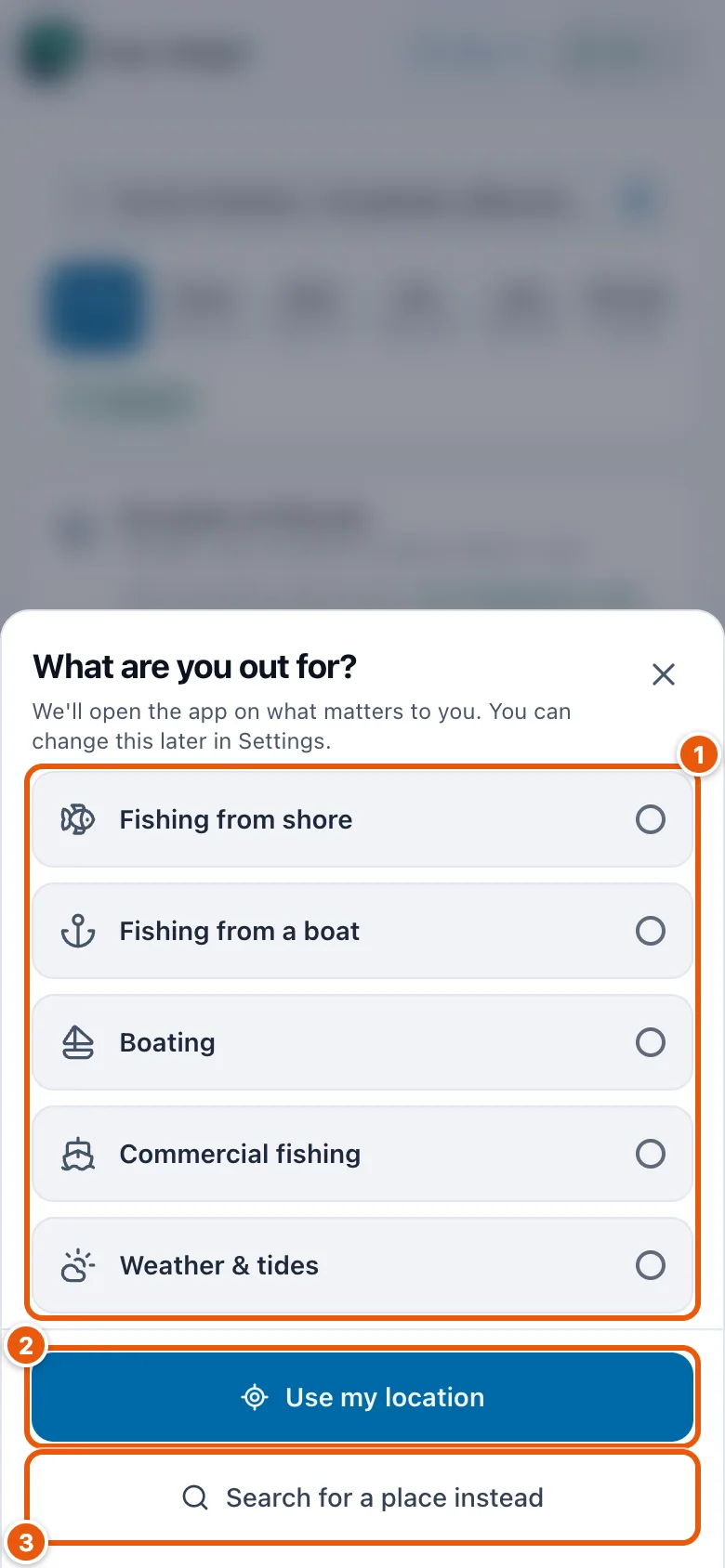
- Boating and Weather & tides open the app on wind and tides. The others open on fishing rules.
- Commercial fishing also switches the app to commercial rules.
- You can change this later. See Change what you're here for.
Use my location
- Tap Fish at the bottom.
- Tap the target button at the right end of the search box 1.
- Allow location when your phone asks. The app shows the rules for the water where you are.
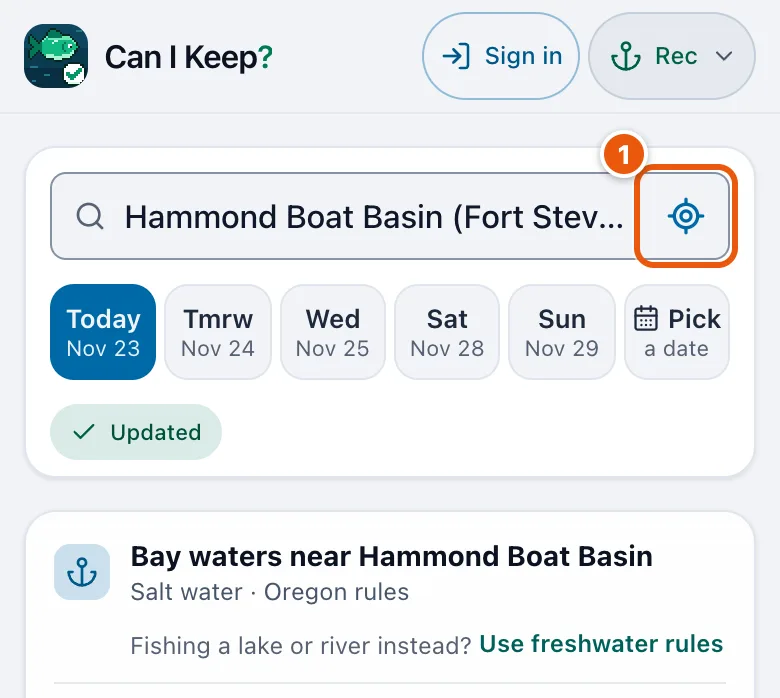
- If you are on land, the app picks the closest water and says how far away it is.
- If you see “Location is turned off for this site”, allow location for canikeep.fish in your browser settings, or search for a place instead.
Search a harbor, lake or river
- Tap the search box 1 (“Search a harbor, lake or river”) at the top of the Fish or Conditions screen.
- Type a few letters of the name.
- Tap the place you want in the list 2.
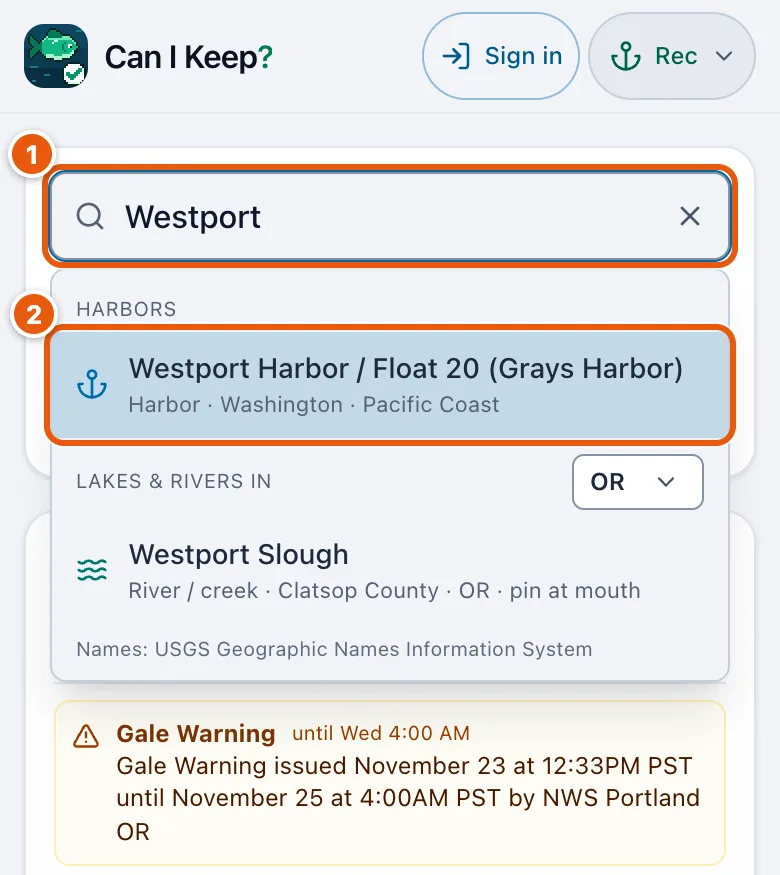
- Harbors from every state are listed first. Lakes and rivers are listed for one state at a time: change the state in the small box beside “Lakes & rivers in”.
- For a river, the pin goes to its mouth. If you fish farther up, drop a pin instead (see Drop a pin on the map).
Pick your day
Rules and conditions are shown for the day you pick.
- Tap a day 1: Today, Tomorrow, the day after, Saturday or Sunday.
- For any other date, tap Pick 2 and choose it in the calendar.
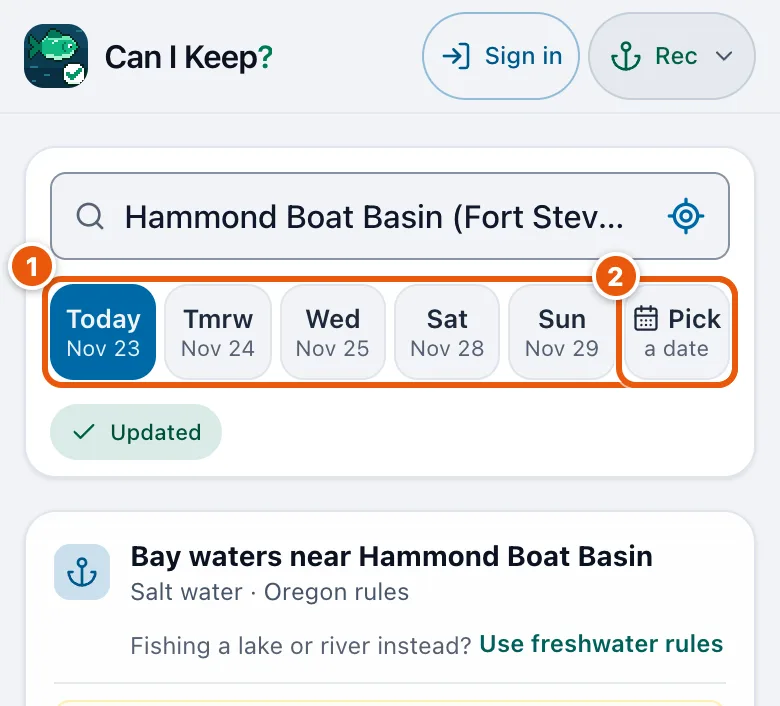
- On a narrow phone the buttons are shortened: Tmrw, Sat, Sun.
- When the day after tomorrow is a Saturday, you see two Sat buttons: the second one is the Saturday after.
The five buttons at the bottom
- Tap Fish 1 to see what you can keep.
- Tap Conditions 2 for wind, seas, tides and the bar.
- Tap Map 3 to drop a pin anywhere.
- Tap Alerts 4 for closures and rule changes. A red dot means there are urgent notices.
- Tap Settings 5 for settings, offline packs, your profile and installing the app.
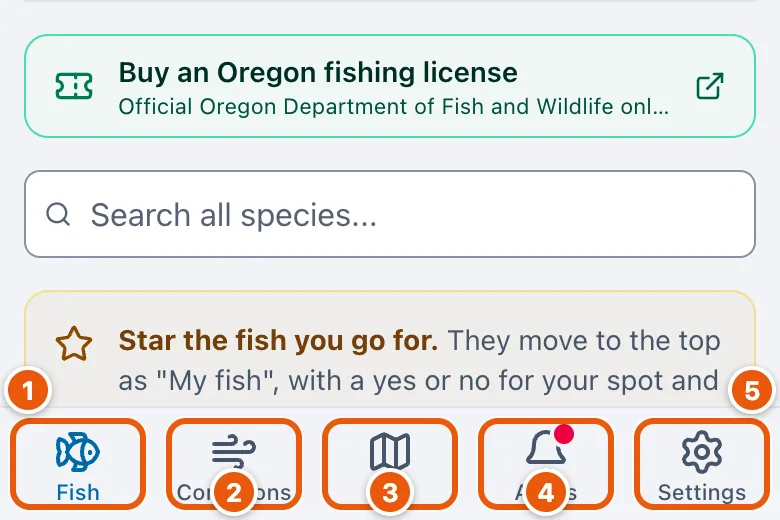
On a computer: everything is on one page, and these buttons are at the top right. See Using it on a computer.
Change what you're here for
- Tap Settings at the bottom.
- Under “I'm here for” 1, tap your choice.
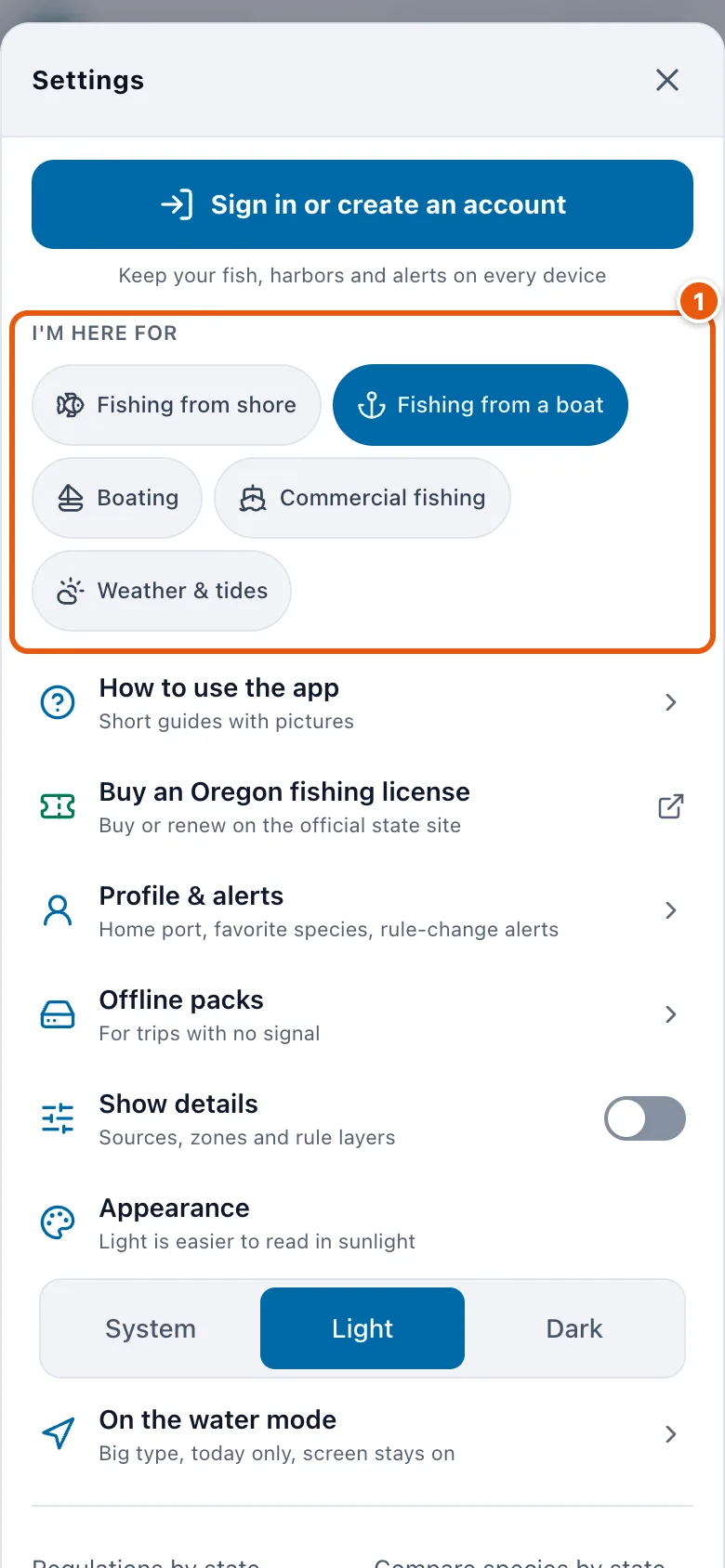
- Commercial fishing switches to commercial rules. Choosing something else afterward does not switch back: tap Comm at the top of the screen and choose Recreational (see Switch to commercial rules).
On a computer: this choice is not shown. Use the Recreational / Commercial button at the top for the rules.
Fishing rules
Can I keep this fish?
- Tap Fish at the bottom and scroll down to “What can I keep?”.
- Fish are sorted into You can keep 1, Check first 2 and You can't keep 3.
- Tap a group's title to open or close it.
- Tap a fish to see its limits (see See the bag limit, size and season).
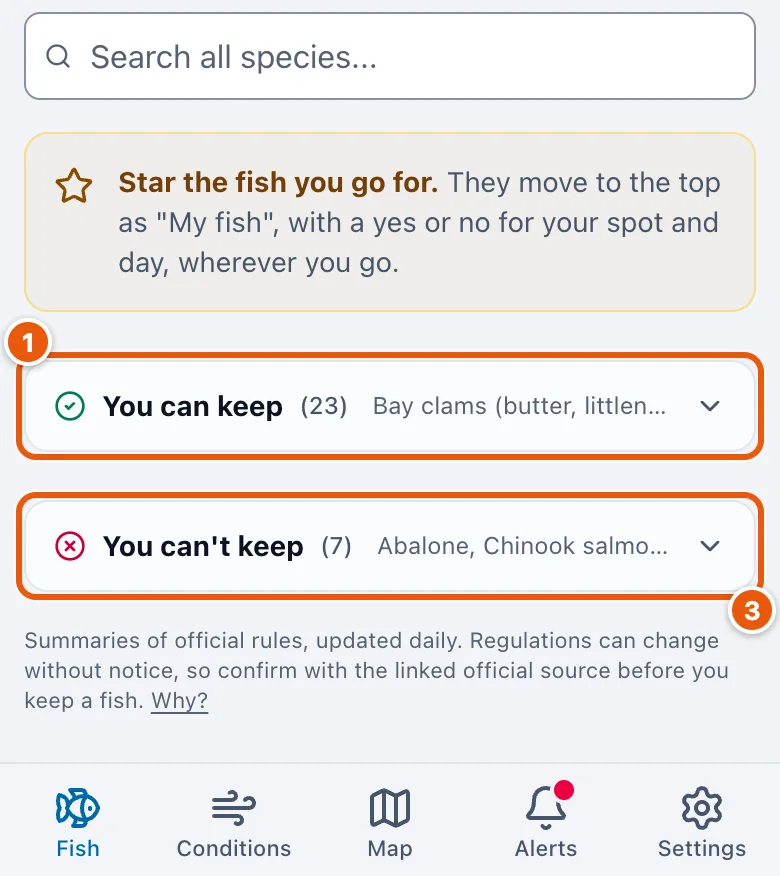
- These are summaries of the official rules. Always confirm with the linked official source before you keep a fish.
- The answer is for your spot and the day you picked. See What Open, Closed and Check first mean.
What Open, Closed and Check first mean
| Label | Listed under | What it means |
|---|---|---|
| OPEN | You can keep | In season on your day. Keep within the bag and size limits. |
| RESTRICTED | Check first | Extra limits apply, or the rules differ by area or by kind of fish (for example hatchery and wild). Open the fish to read them. |
| PERMIT ONLY | Check first | You need a special permit or tag to keep it. |
| CHECK WITH AGENCY | Check first | The app does not have clear season dates for this fish. Check with the state agency. |
| CLOSED | You can't keep | Out of season or closed on your day. |
- A line like “Closes Sunday” or “Opens Sunday” under a fish means the answer changes the next day.
- An “Emergency” or “In-season change” note means the state changed the rule after the book was printed.
See the bag limit, size and season
- Tap the fish's name 1.
- Read Bag, Size and Season 2.
- Tap View official source 3 to read the state's own rule.
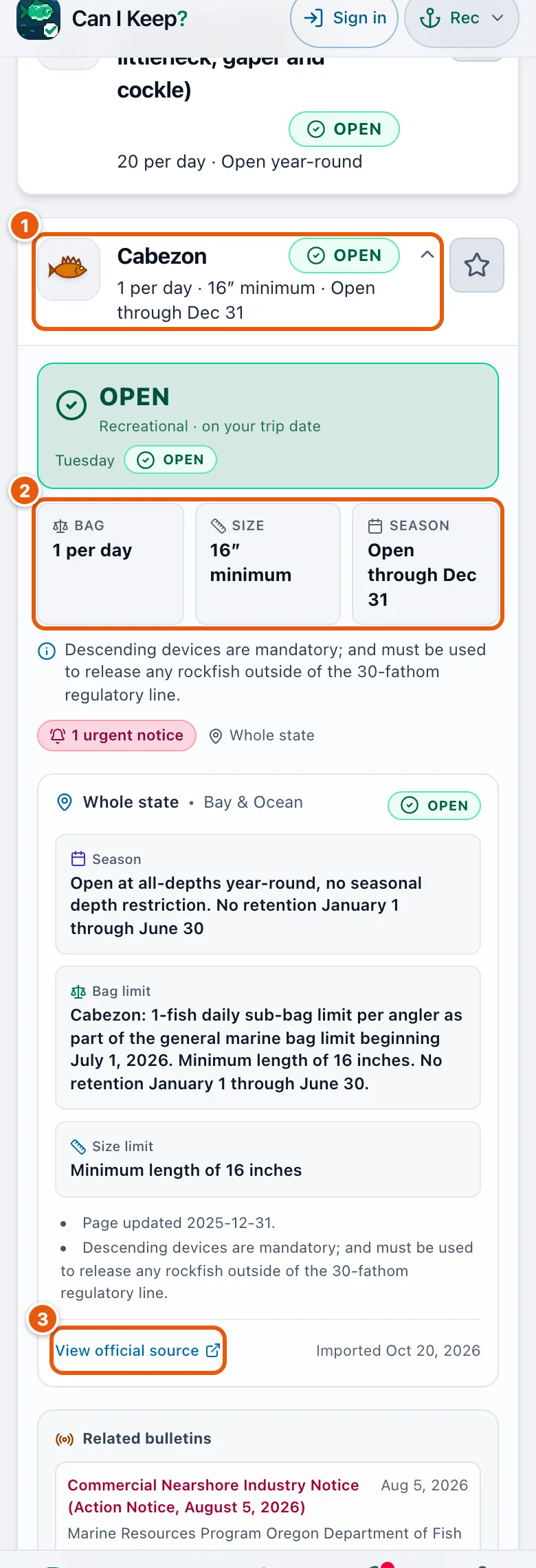
- Scroll down inside the card for each area's rules, gear rules and related notices.
- “Not stated” means the source did not give that limit. Check the official source.
Find a fish by name
- On the Fish screen, tap Search all species... 1.
- Type part of the name. The list shows only matching fish.
- Clear the box to see every fish again.
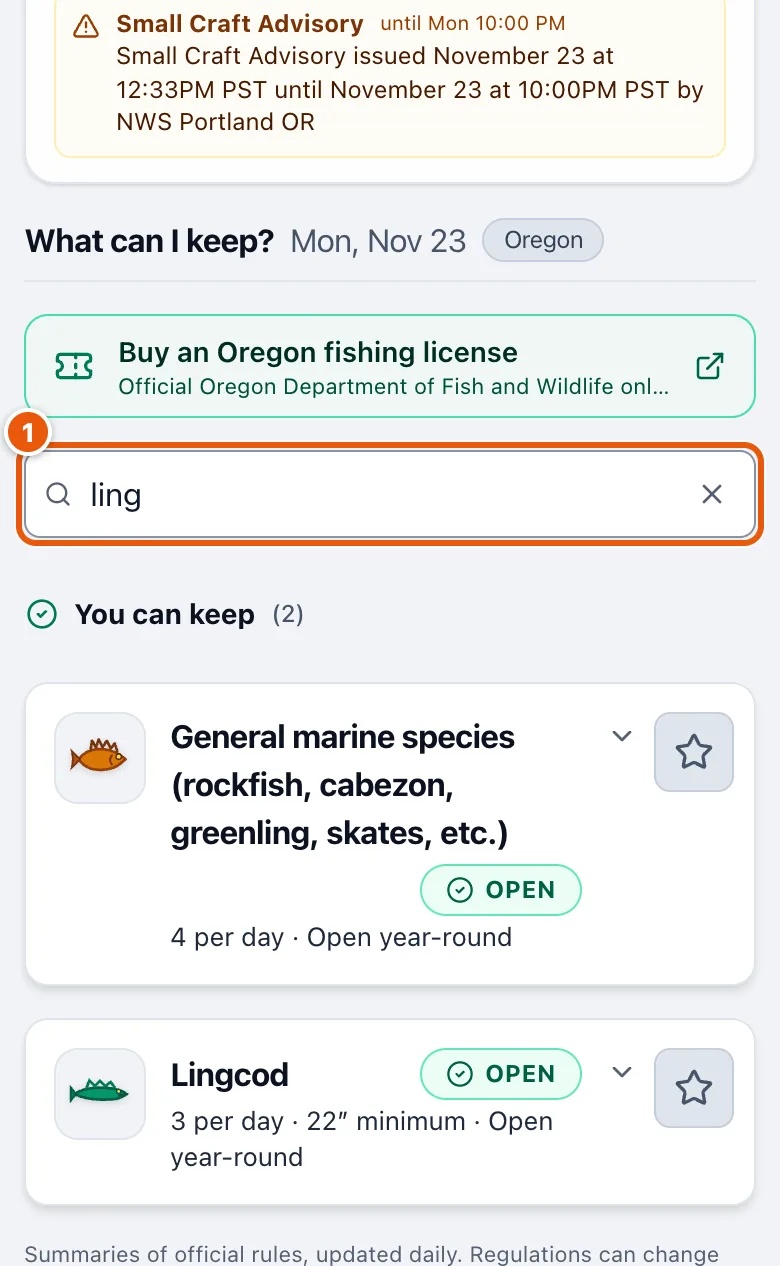
- Local names often work too, like “king” for Chinook salmon.
Keep your fish at the top
- Tap the star 1 next to a fish you go for.
- It moves to the top under My fish 2.
- Tap the star again to remove it.
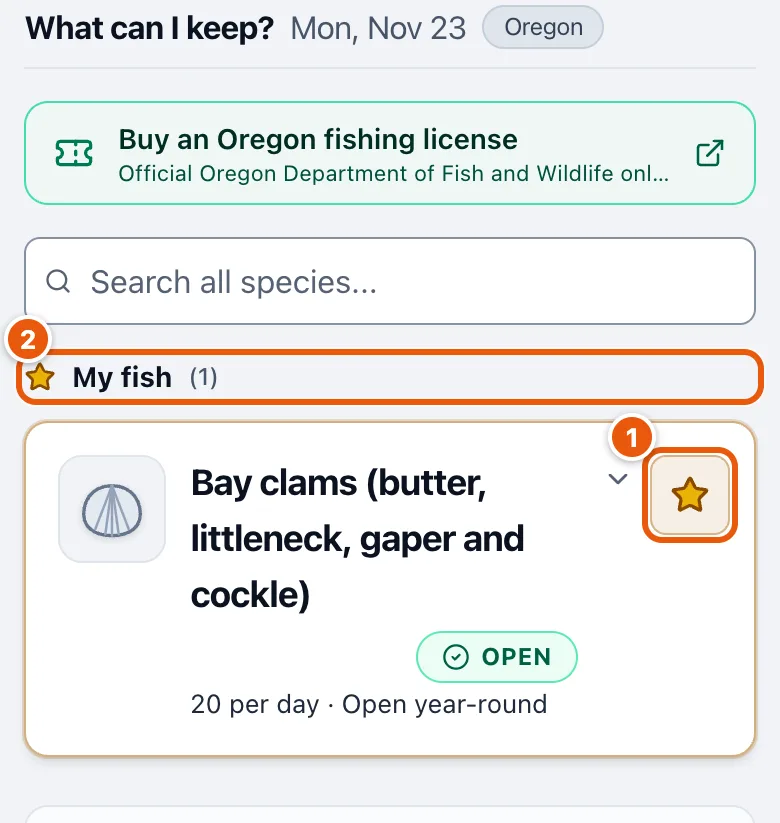
- A starred fish stays starred in every state.
- Starred fish also come first in On the water mode and in the Tracked species alerts filter.
Fishing a lake or river instead?
The app decides salt or fresh water from where your pin is. You can change it for this spot.
- On the Fish screen, find the card that names your spot.
- Tap Use freshwater rules (or Use salt-water rules) 1.
- To undo it, tap the × on the “Freshwater rules · your choice” label.
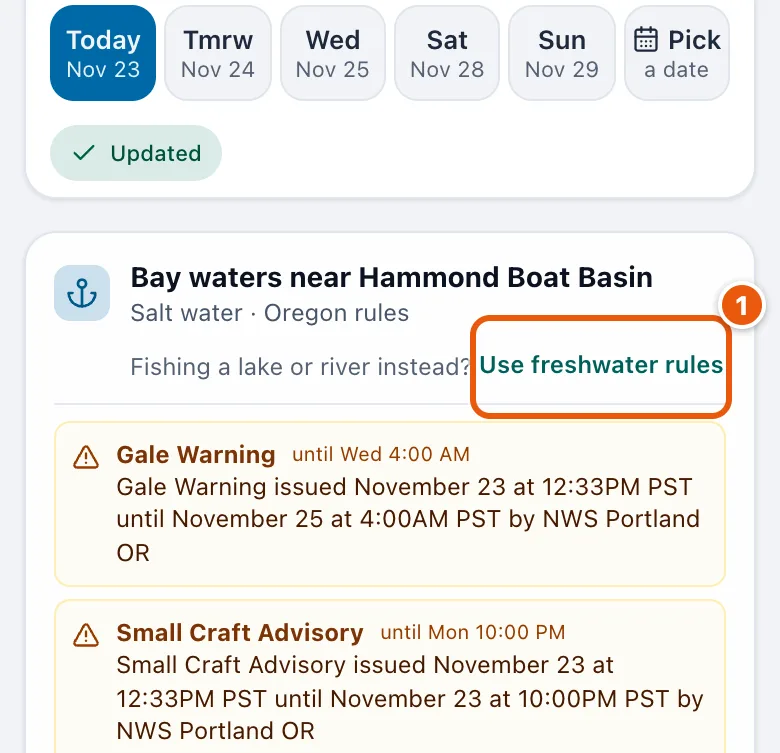
- Your choice only lasts for this spot. Moving the pin goes back to the automatic choice.
- On fresh water the app shows the state's general rules. Many lakes and rivers have their own special rules, so check the official regulations for that water.
- If the card says “Not here?” or “Use its rules”, tap the right water's name to get its rules.
Rivers shared by two states
On a border river like the Columbia, both states' rules are listed.
- Tap the state whose rules you want to see 1, for example Oregon or Washington. The number is how many fish that state lists.
- To see your own state first every time, tap Rec (or Comm) at the top and choose your state under Licence.
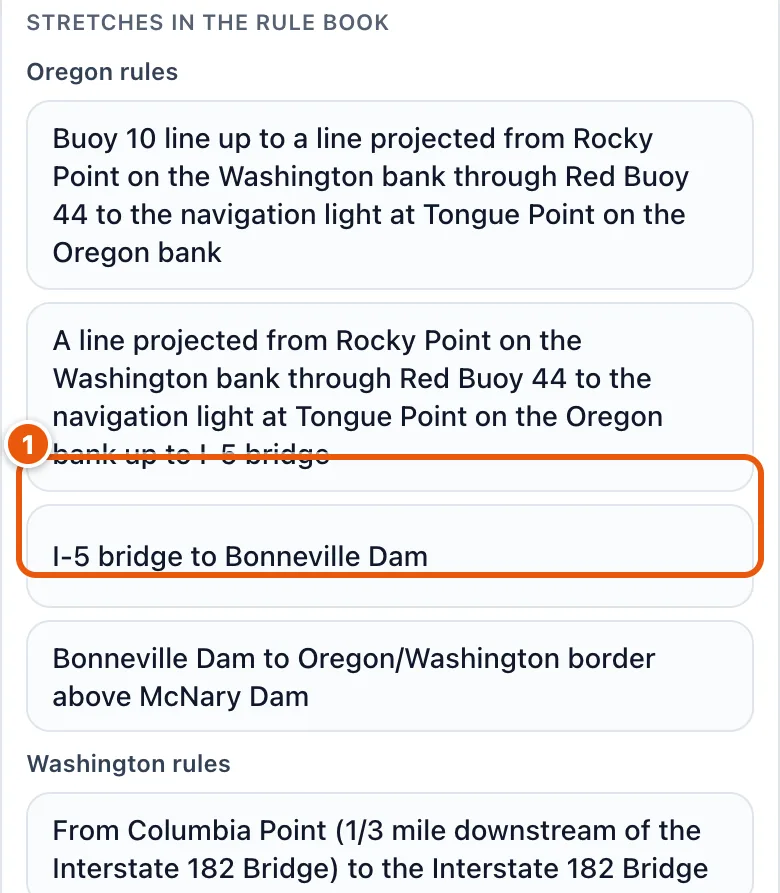
- Follow the rules of the state you are fishing in. Between Oregon and Washington, either license works from a boat.
Buy a fishing license
- On the Fish screen, tap Buy a … fishing license 1 (it names your state).
- The state's official store opens in a new tab. Buy or renew there.
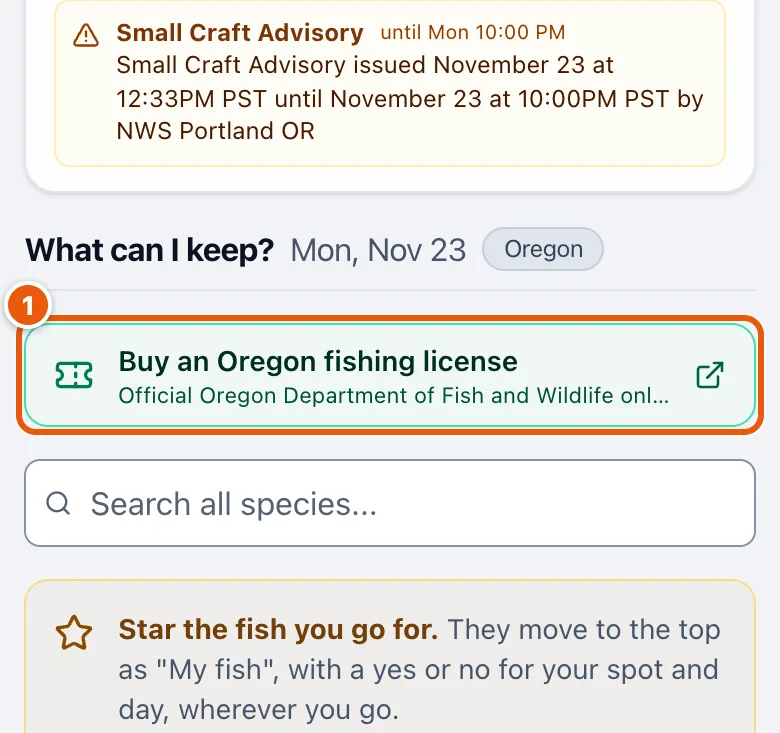
- The same button is also in Settings.
- The license is sold by the state, not by Can I Keep?.
Switch to commercial rules
- Tap Rec 1 at the top of the screen.
- Tap Commercial 2. The button at the top now says Comm.
- Optional: choose the state you hold a license in under Licence 3.
- To go back, tap Comm and choose Recreational.
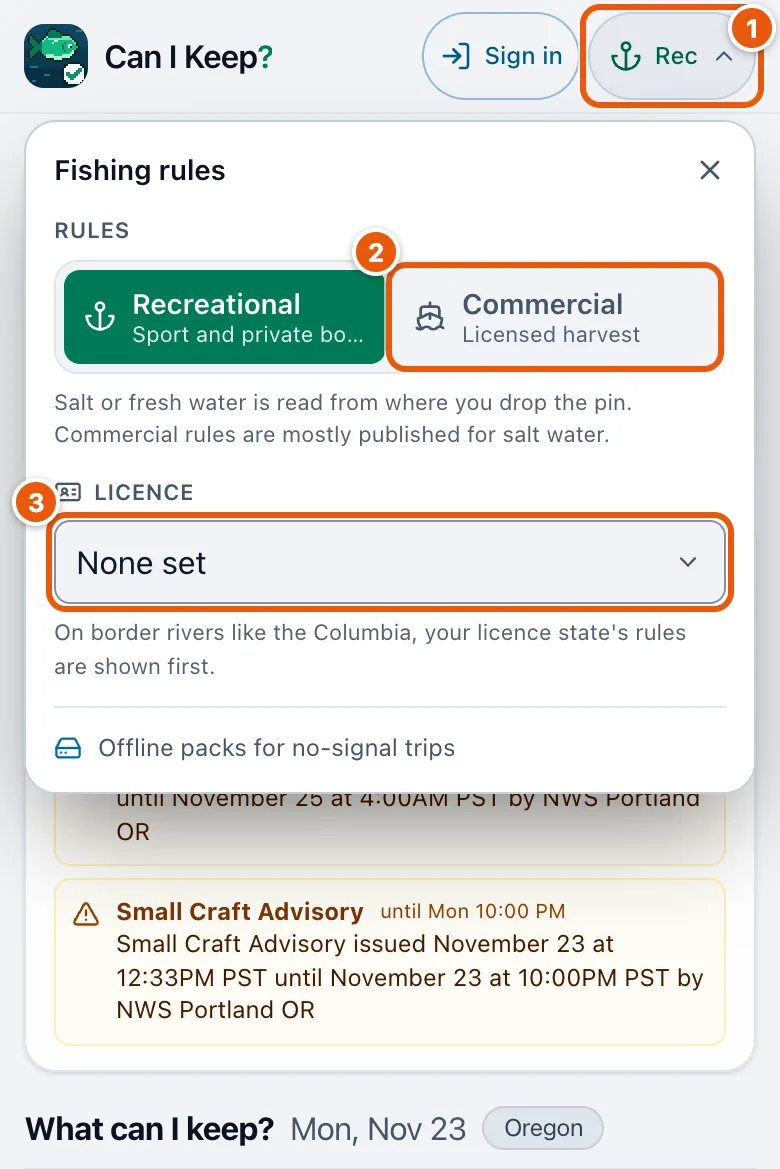
- Commercial rules are mostly published for salt water. On a lake or river you may see “Only recreational freshwater rules are collected”.
- Protected areas on the map are colored for the rules you chose.
On a computer: the button reads Recreational or Commercial.
Am I in a protected area?
- Put your pin where you fish (see Use my location or Drop a pin on the map).
- On the Fish screen, look for “Protected area at this spot” 1 under the card that names your spot.
- Read the label: You: no fishing, You: restricted or You: allowed. Tap Official page for the details.
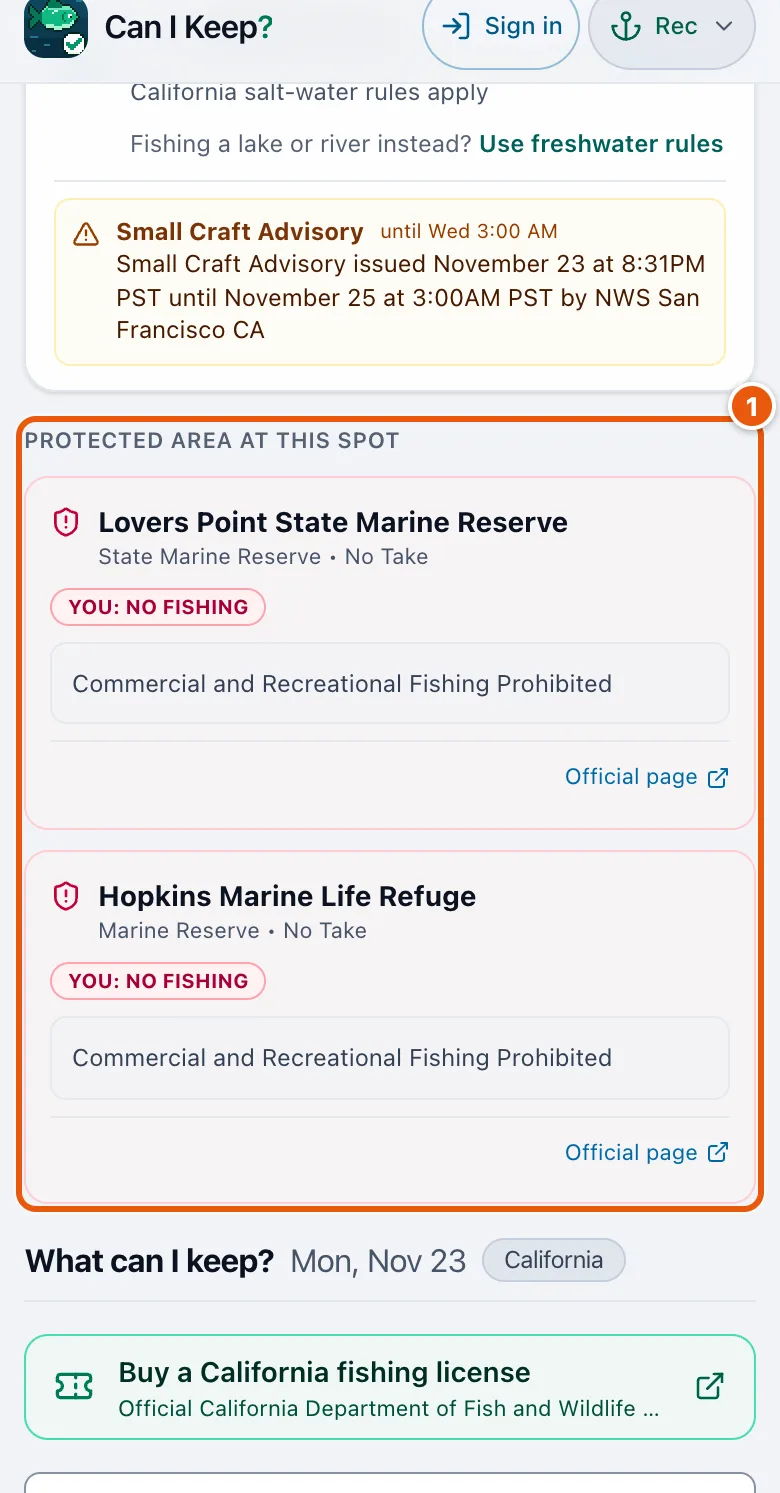
- The panel only appears when the pin is inside an area that limits fishing for you.
- To see protected areas around you, use the map's MPAs layer (see Satellite, harbors and protected areas).
Wind, seas and tides
Check wind, seas and tides
- Tap Conditions 1 at the bottom.
- Read the summary line 2: wind, seas, the next tide and the bar (and water temperature where it is measured).
- Scroll down for the hour-by-hour forecast and the tide chart.
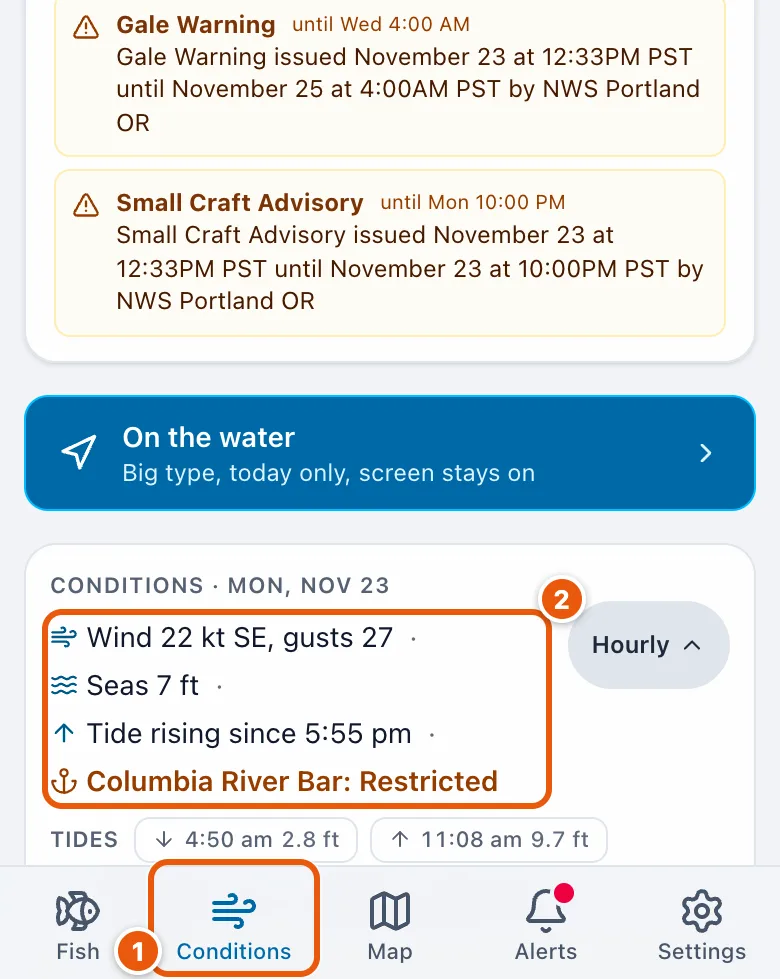
- Conditions need a connection. Offline you will see “Offline — hourly conditions need a connection”.
- Seas are shown only on salt water.
On a computer: conditions are on the main page under the map buttons. Tap Hourly to open the details.
Hour-by-hour wind and waves
- Tap Conditions and scroll to “Hourly wind & waves”.
- Swipe the row of hours 1 left and right. Now marks the current hour.
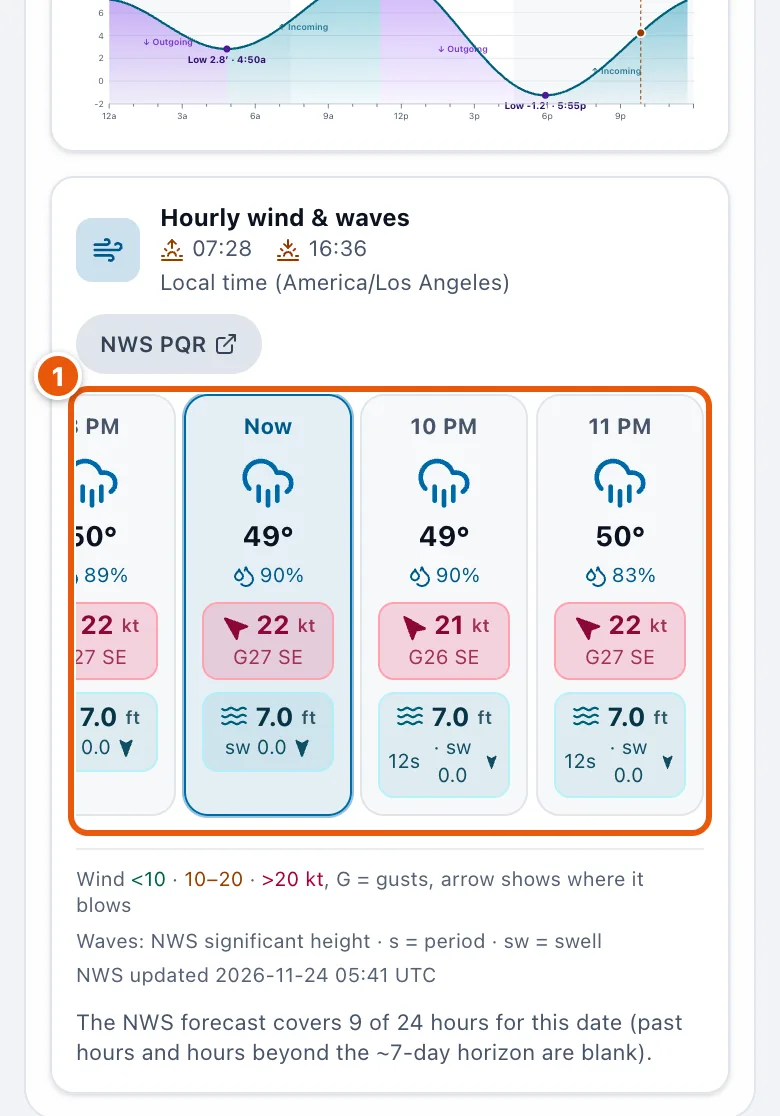
- Wind colors: green under 10 knots, amber 10–20, red over 20. “G” is gusts; the arrow shows where the wind blows.
- Under waves, “s” is the period in seconds and “sw” is swell.
Read the tide chart
- Tap Conditions and scroll to the chart that starts with “Tide ·”.
- Touch the chart 1 and slide your finger to read the height at any time.
- Above the chart, read Incoming tide or Outgoing tide and the height now. Next high (or Next low) 2 says when the tide turns.
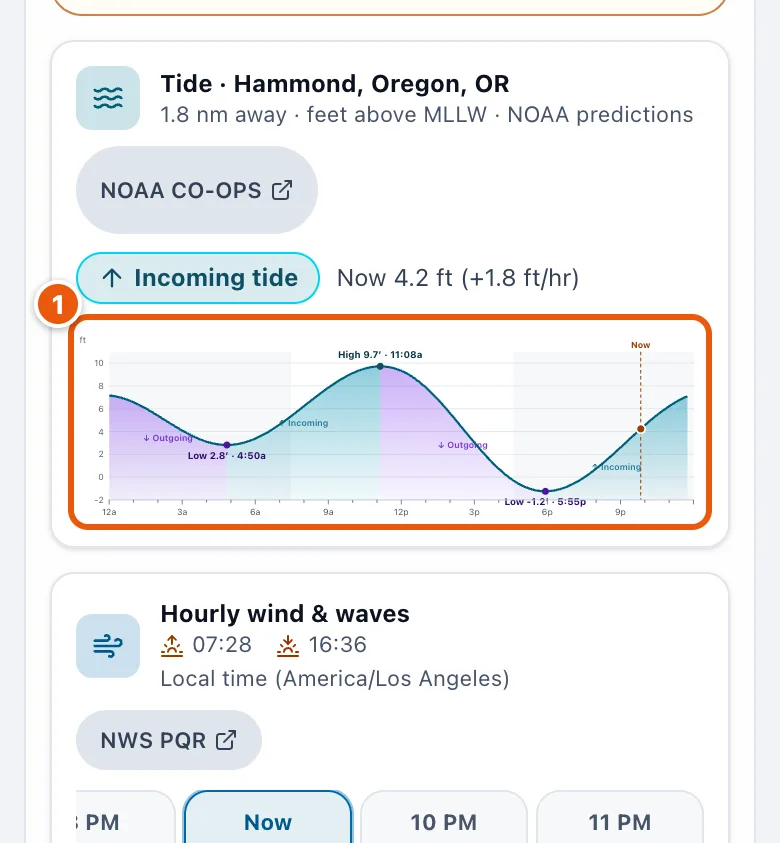
- Heights are in feet from NOAA's nearest tide station, named at the top of the chart with its distance.
- Tides need a connection. There are no tides on lakes or on rivers away from the sea.
Bar crossing status
- Put your pin at or near the harbor.
- Tap Conditions and scroll to “Bar crossing”.
- Read the status 1: No restrictions, Restricted, Closed, Not reporting or Unknown.
- Tap the phone number 2 to call the Coast Guard bar line.
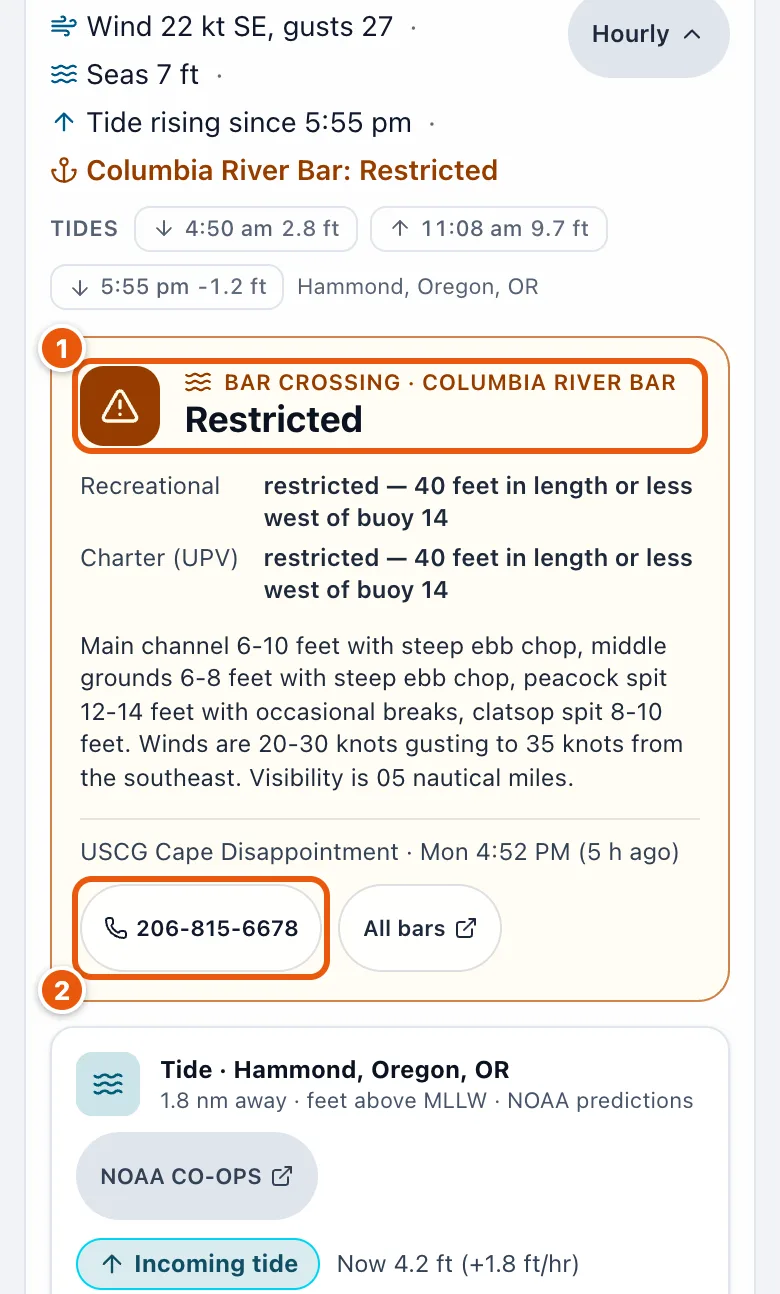
- Bar reports exist only for Washington, Oregon and northern and central California bars.
- “Unknown” means the last Coast Guard report is too old. Check conditions yourself before crossing.
- Elsewhere, the spot card may say an inlet has no official crossing status. Check local conditions.
On the water mode
A big-type screen for today at your spot: alerts, the bar, wind, tide, and what you can keep.
- Tap Conditions, then tap On the water 1 (first picture).
- Tap Keep screen on 2 so the screen does not go dark (second picture). It stays off until you tap it.
- If you have moved, tap Pin my position 3.
- Tap Exit 1 (second picture) to go back to the full app.
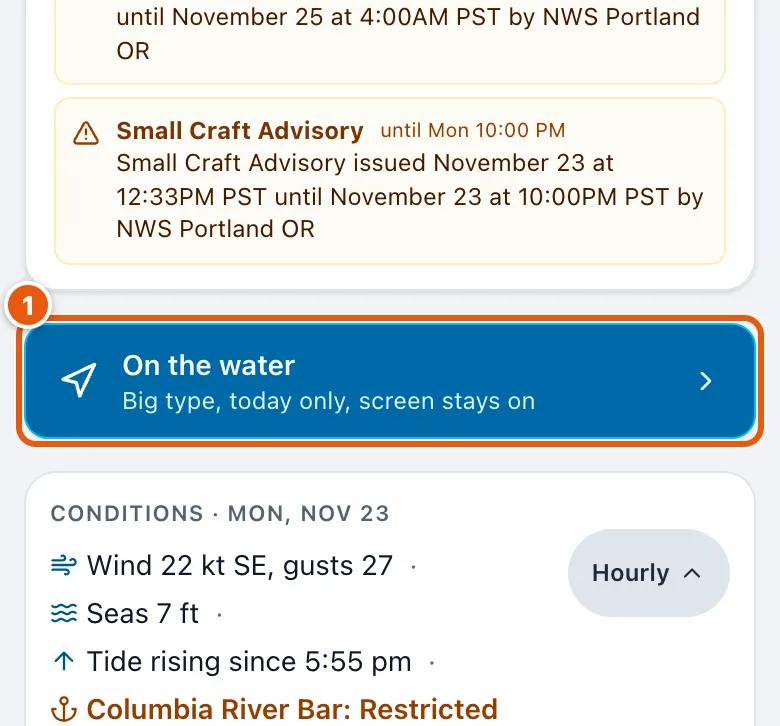
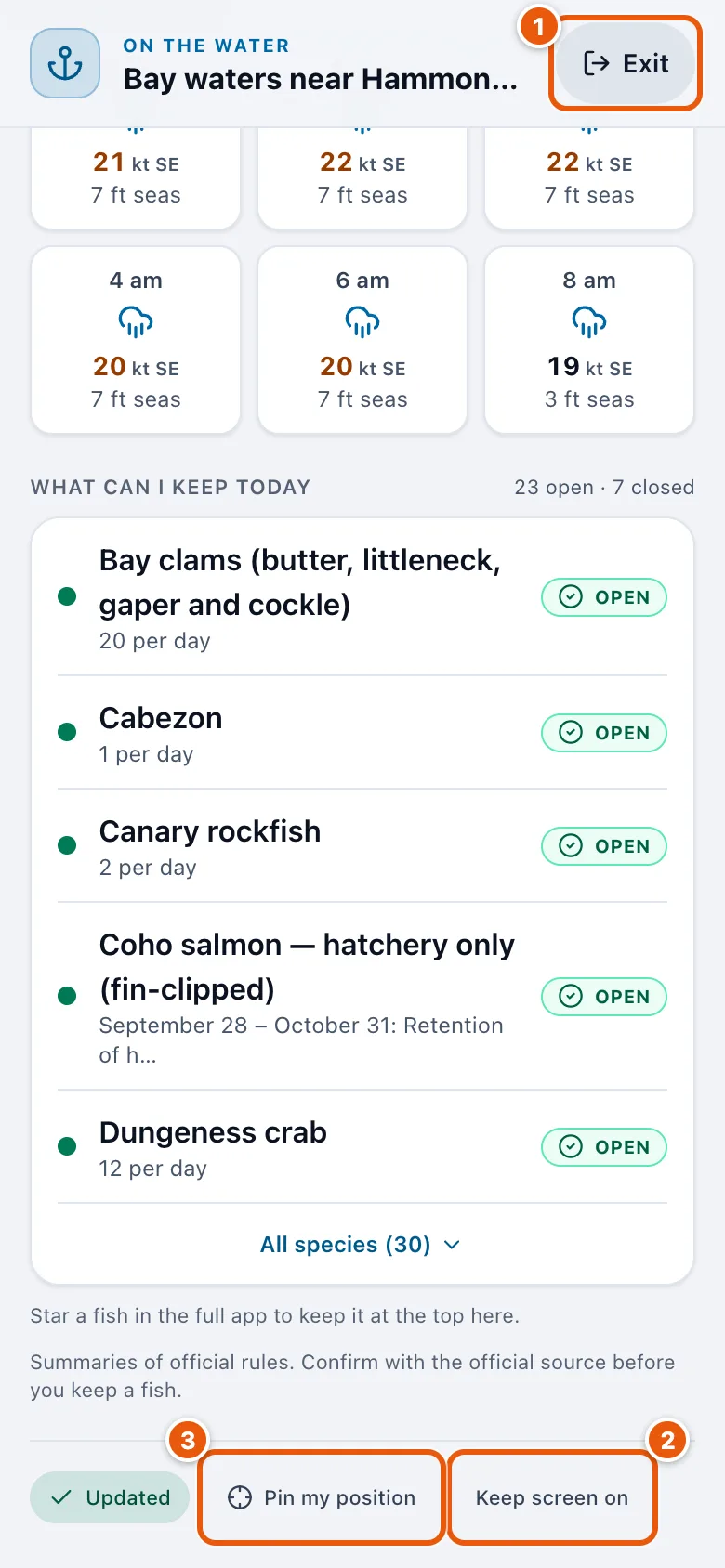
- It always shows today. The app reopens in this mode until you tap Exit.
- Some phones do not offer Keep screen on; then the button is not shown.
- You can also open it from Settings → On the water mode.
On a computer: click On the water · focus on this spot.
Map
Drop a pin on the map
- Tap Map at the bottom.
- Move and zoom the map with your fingers, then tap the water where you fish 1. A red pin appears.
- Tap See rules here 2 or See conditions 3.
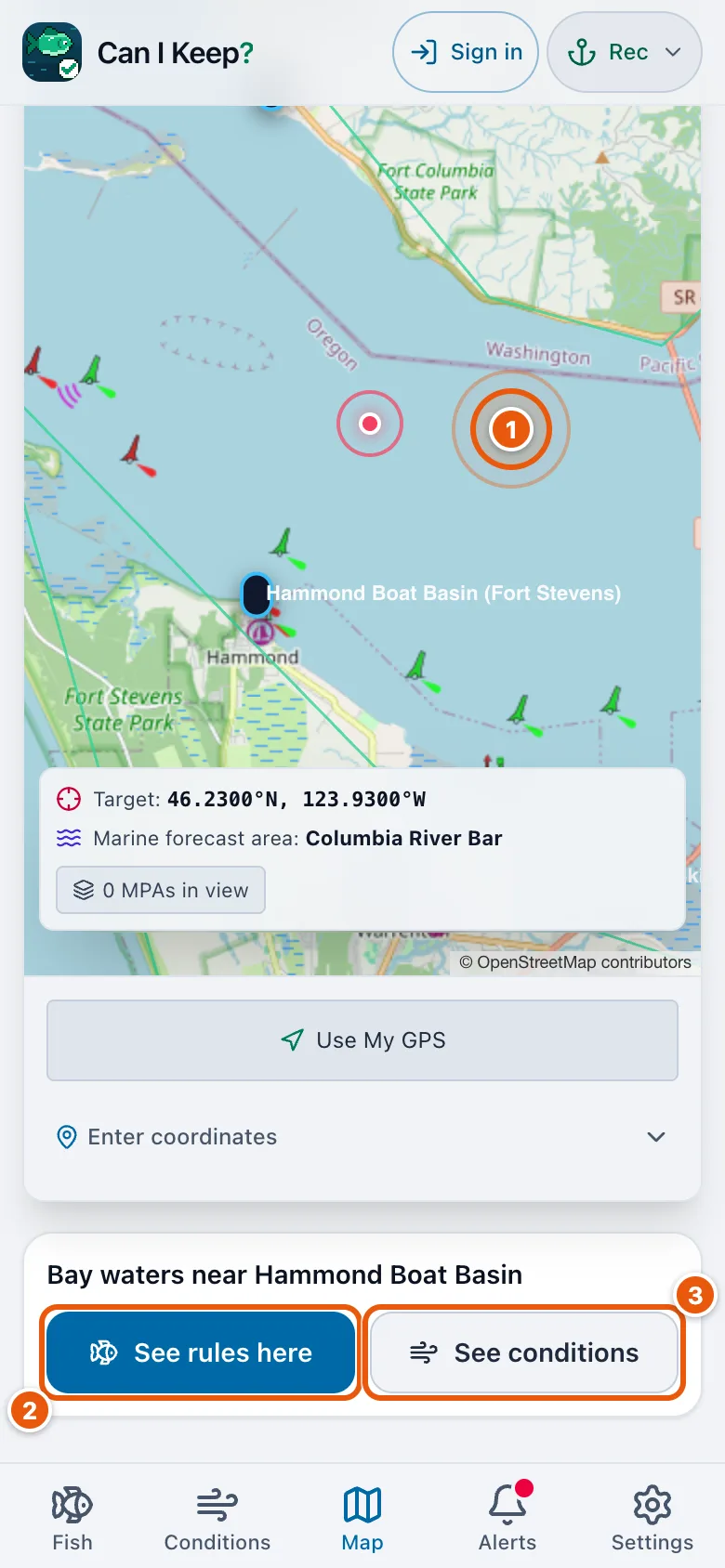
- Tapping a harbor marker puts the pin at that harbor.
- The round arrow button at the top right of the map brings you back to your pin.
On a computer: click Show map · drop a pin anywhere, then click the water.
Satellite, harbors and protected areas
- Tap Map at the bottom.
- Use the row of buttons above the map 1. Swipe the row sideways: Harbors and Coverage are off to the right.
- Tap Satellite for a photo view (Map to go back), MPAs for protected areas, Nautical Seamarks for buoys and lights, Harbors for harbor names, and Coverage to see which states the app covers.
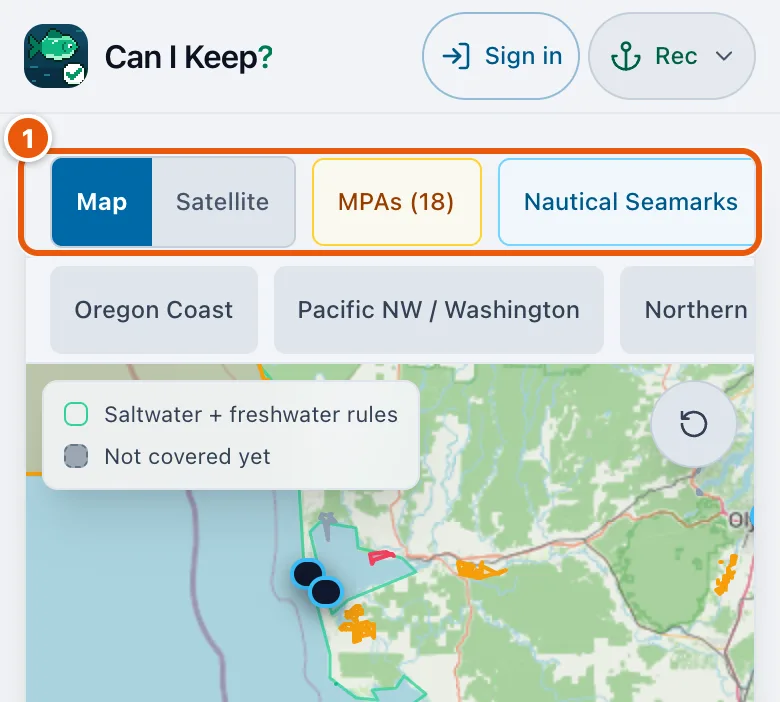
- Protected areas show only when you zoom in. Red is no fishing, amber is restricted, green is allowed.
- On a lake or river, the sea buttons are hidden.
- Map layers need a connection.
Type in GPS coordinates
- Tap Map and scroll below the map.
- Tap Use My GPS 1 to put the pin exactly where you are.
- Or tap Enter coordinates, type the latitude and longitude 2 in decimal degrees (for example 46.908 and -124.108), and tap Plot Waypoint 3.
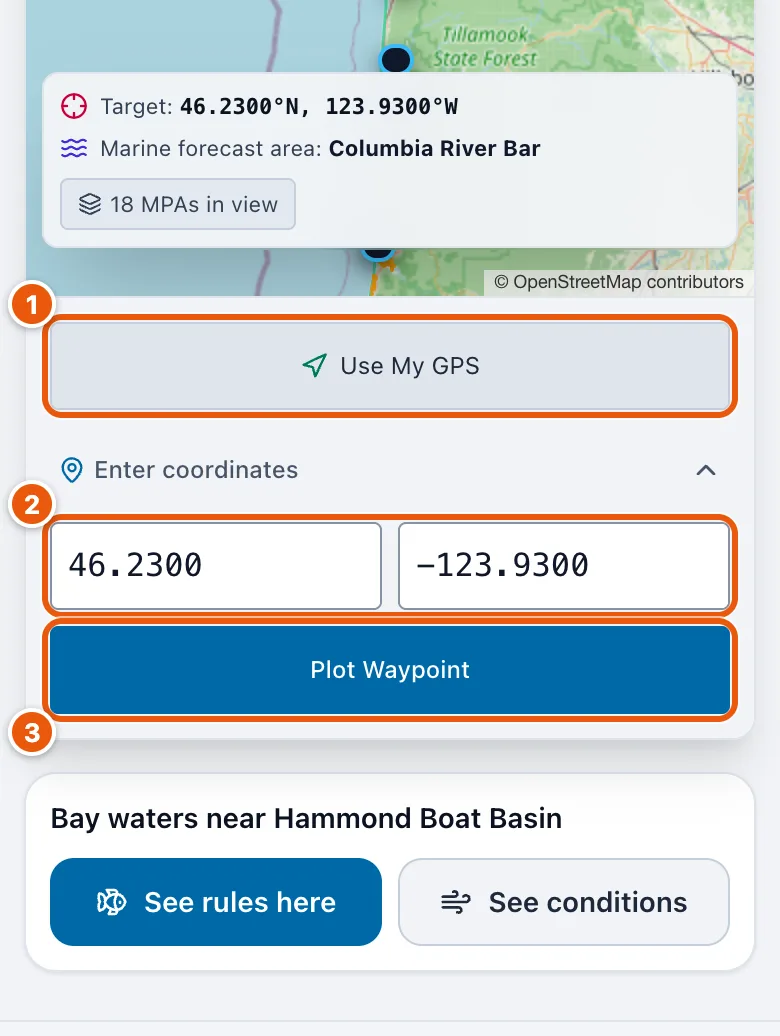
- Use My GPS pins the exact spot. Use my location in the search box does the same, but on land it picks the closest water.
- West longitudes are negative numbers.
Alerts
See closures and rule changes
- Tap Alerts at the bottom.
- Tap All, Urgent or Tracked species 1 to filter the list.
- Tap a notice 2 to open the official announcement.
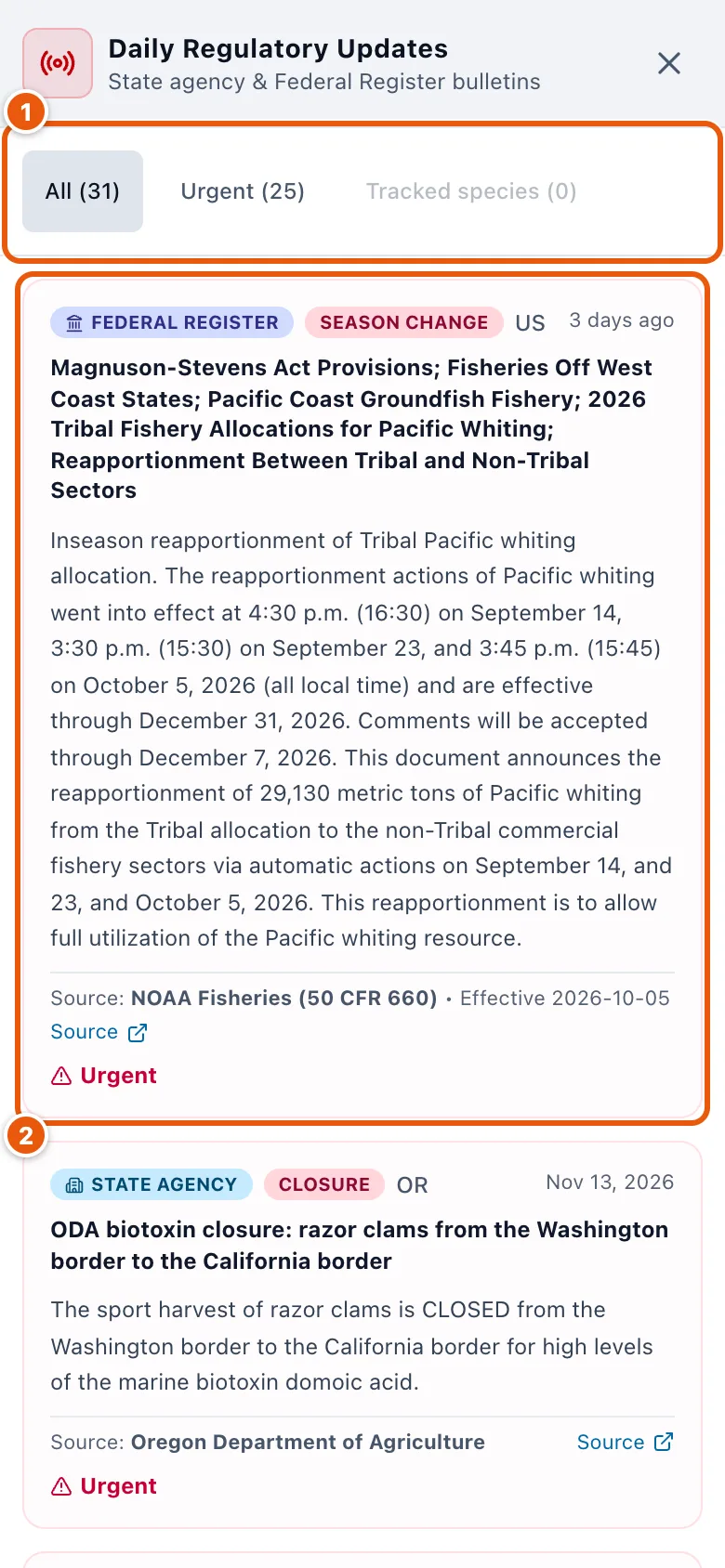
- The list covers the state your pin is in, for the last 30 days.
- The red dot on Alerts shows while there are urgent notices in that list. It does not go away when you read them.
- Tracked species works once you have starred a fish (see Keep your fish at the top).
On a computer: click the bell at the top right.
Get a notification when rules change
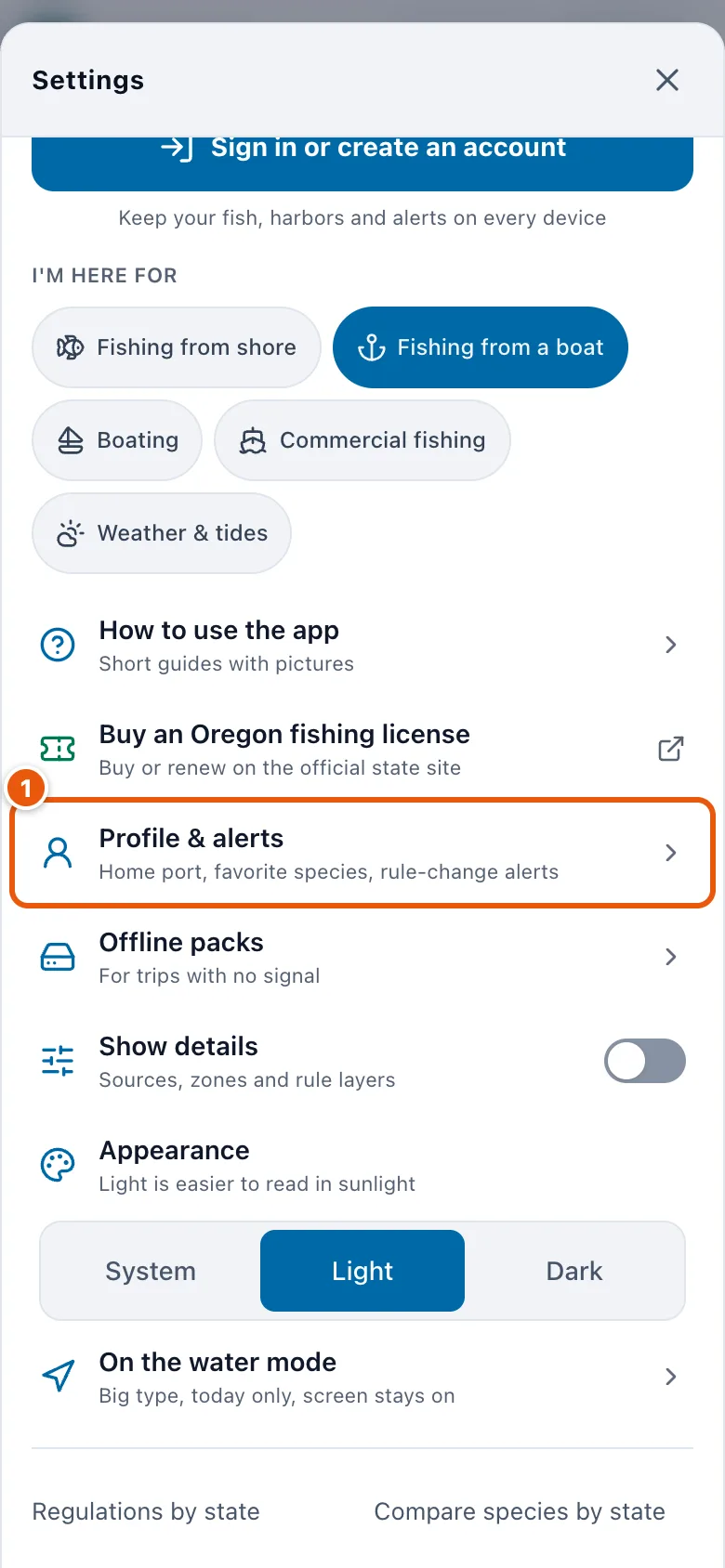
- Tap Settings, then Profile & alerts 1 (first picture). A window called “Vessel Profile” opens.
- Under “Season & rule alerts”, tick the box 1 (second picture). It changes from Off to On.
- Tap Allow when your phone asks about notifications.
- Tap Save Profile 2 at the bottom.
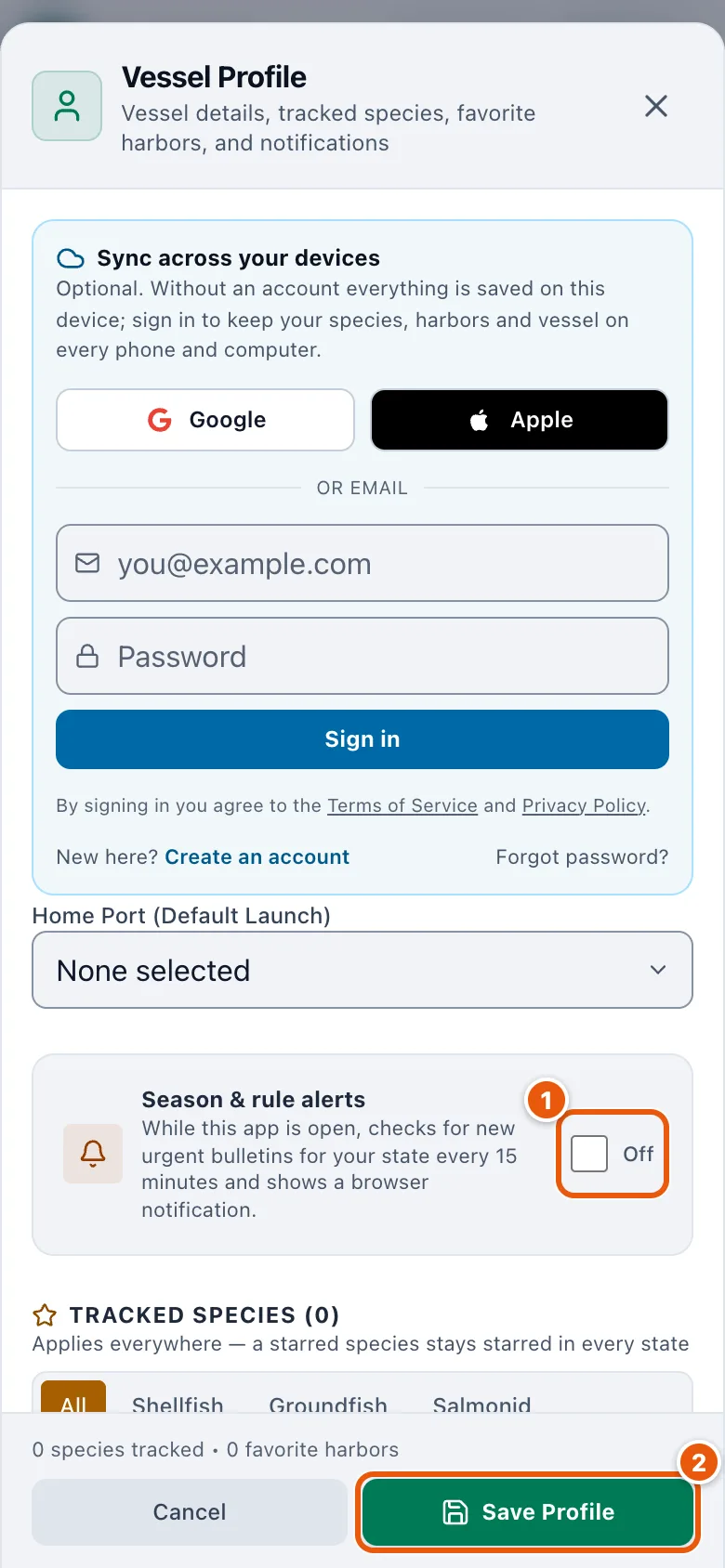
- On iPhone and iPad, install the app first and open it from the Home Screen, or alerts only work while the app is open. See Install on iPhone or iPad.
- Alerts cover the state your pin is in, your home port's state, and your starred fish.
- When it says “Background alerts are on for this device”, tap Send test notification to check.
On a computer: click the round profile button at the top right.
Install and no-signal trips
Install on iPhone or iPad
- Open canikeep.fish in Safari.
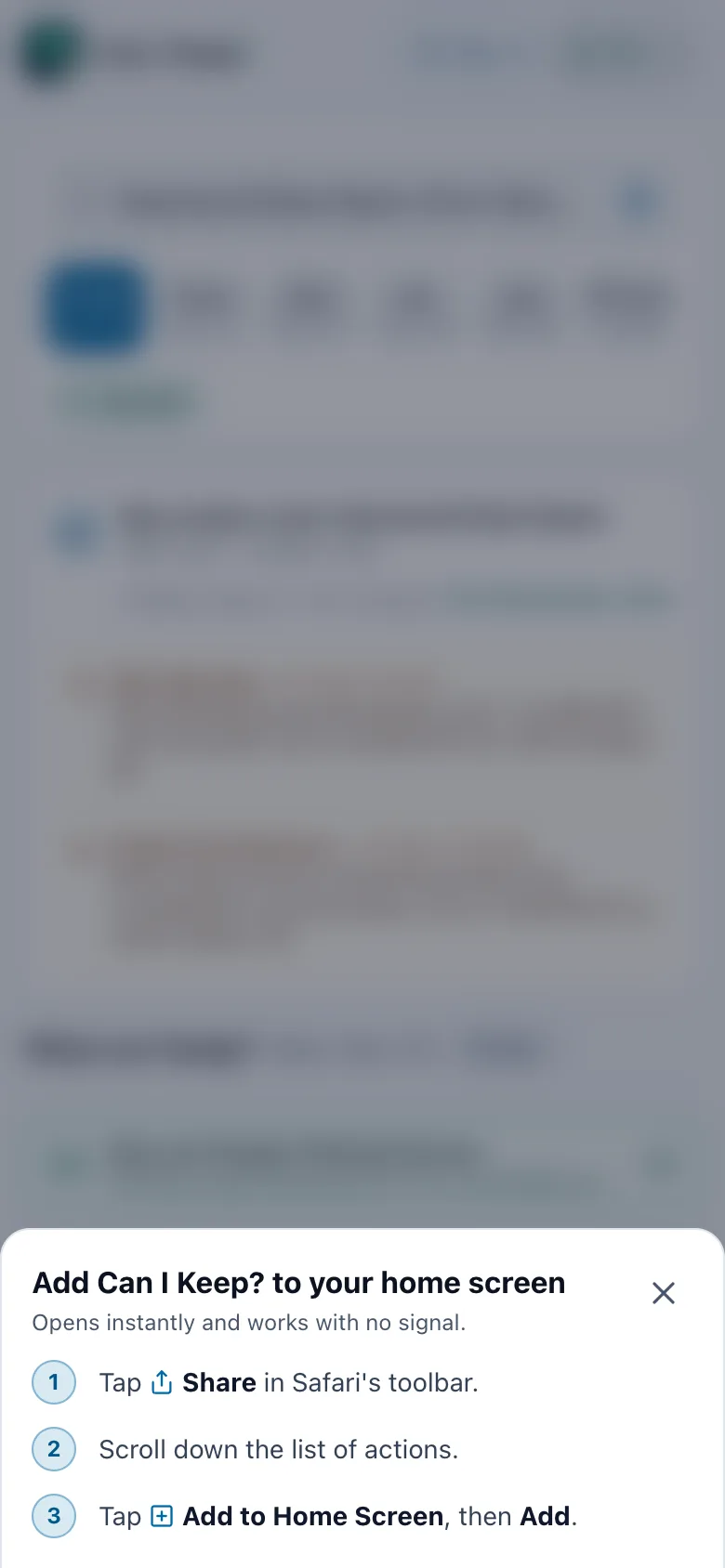
- Tap Settings, then Install the app (or tap How on the install banner).
- Tap Share in Safari's toolbar, scroll down, and tap Add to Home Screen, then Add.
- Open Can I Keep? from its new icon on your Home Screen.
- In another browser or inside an app like Facebook, open the page in Safari first.
- The installed app is needed for alerts when the app is closed.
Install on Android
- Open canikeep.fish in Chrome.
- Tap Install on the banner at the bottom, or tap Settings, then Install the app.
- Tap Install in the box Chrome shows.
- If you see neither, tap Chrome's menu ⋮ and choose Add to Home screen or Install app.
Install on a computer
- In Chrome or Edge, click Install app at the top of the page, then Install.
- In Safari on a Mac, choose File → Add to Dock in the menu bar, then click Add.
- The app then opens in its own window from your Dock or taskbar.
- Firefox on a computer cannot install it. Use the website instead.
Use it with no signal
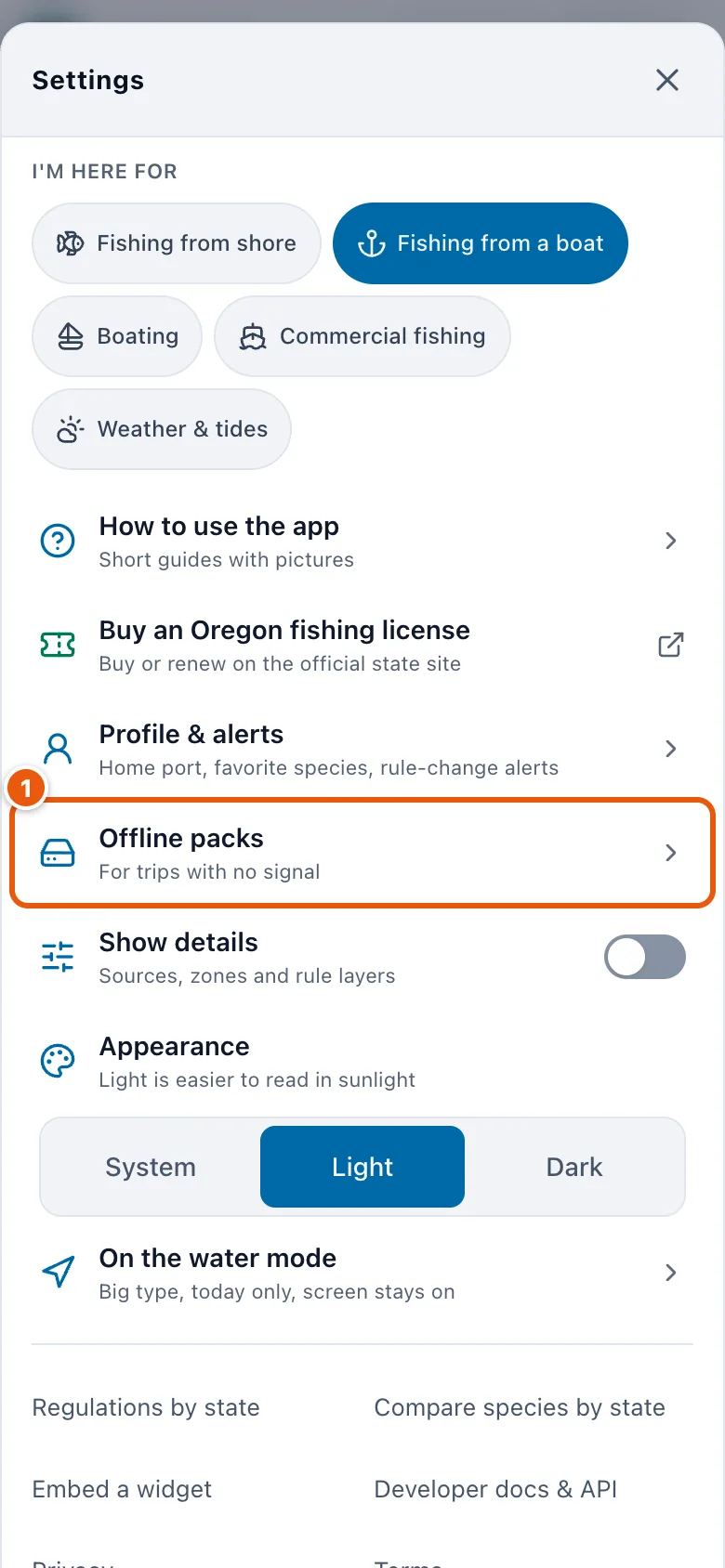
- Before you head out, while you still have signal, tap Settings, then Offline packs 1 (first picture).
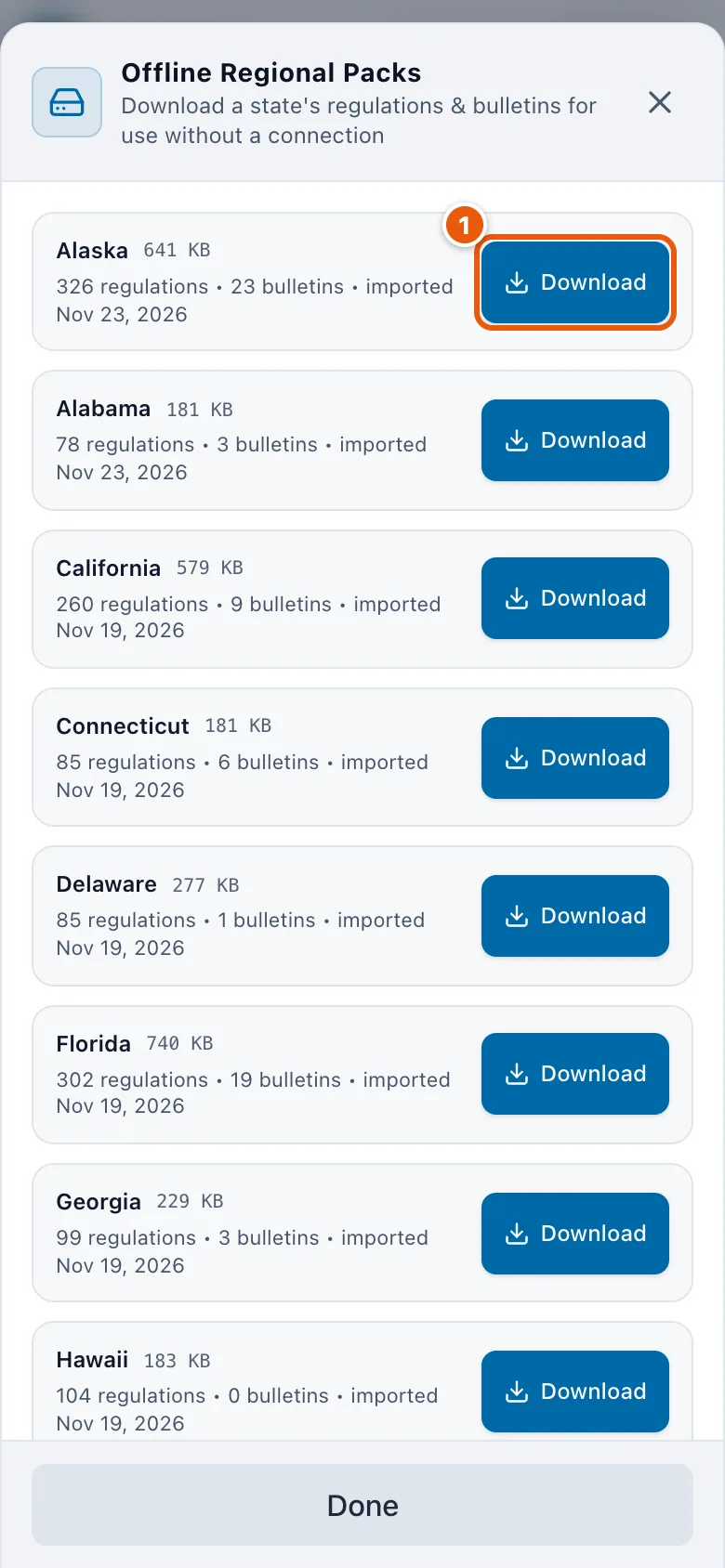
- Tap Download 1 next to each state you will fish (second picture).
- Wait for Saved, then tap Done.
Your settings
Sign in to sync your devices (optional)
You do not need an account. Sign in only to keep your starred fish, harbors and boat on every phone and computer.
- Tap Settings, then Profile & alerts.
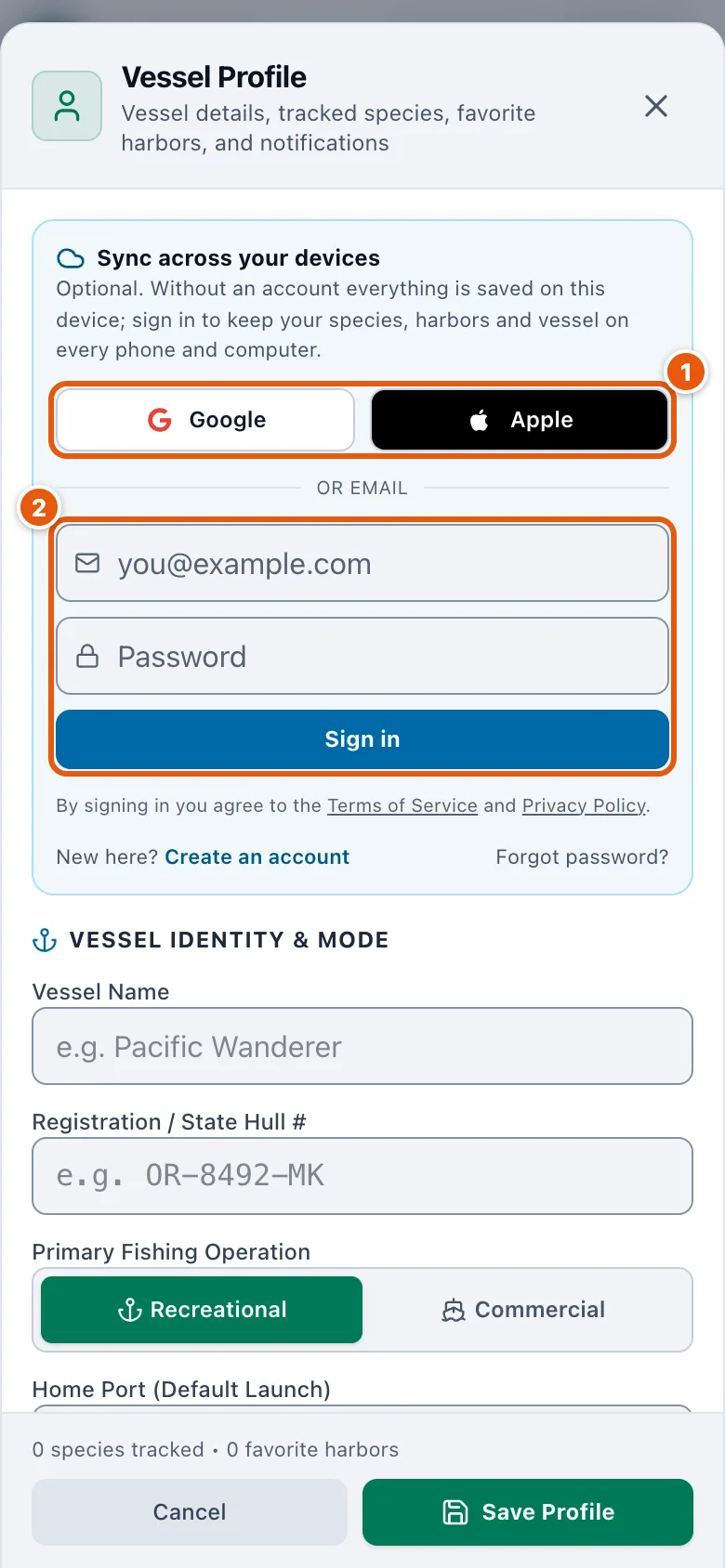
- Under “Sync across your devices”, tap Google or Apple 1.
- Or type your email and password 2 and tap Sign in. New here? Tap Create an account first.
- Forgot your password? Tap Forgot password? and we email you a link.
- Offline packs stay on each device. Download them on each phone you take out.
Set your home port and boat
- Tap Settings, then Profile & alerts.
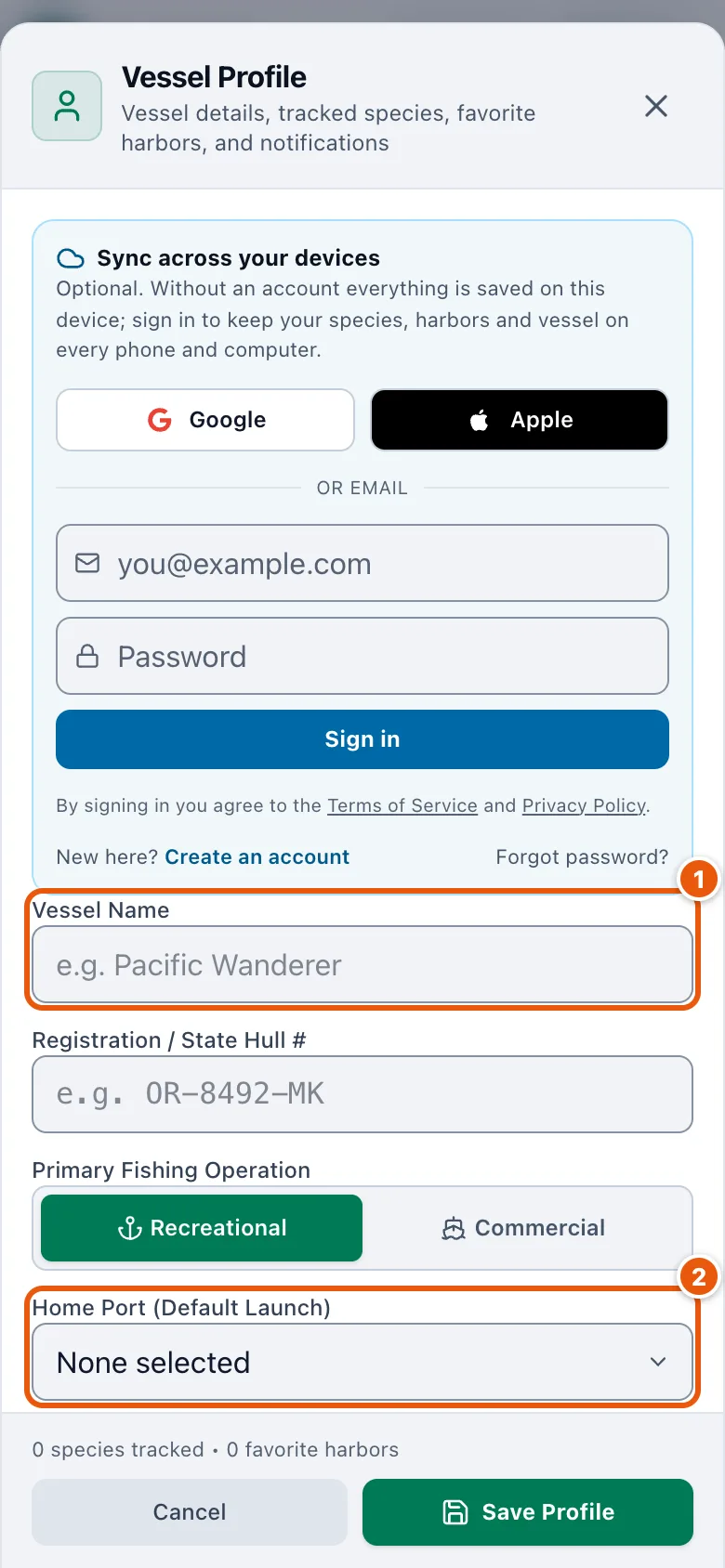
- Type your boat's name in Vessel Name 1.
- Choose your harbor under Home Port (Default Launch) 2.
- Tap Save Profile at the bottom.
- Nothing is kept until you tap Save Profile.
- Your home port's state is included in your rule-change alerts.
- Harbors you add under Favorite Harbors show first when you search.
Make it easier to read in sunlight
- Tap Settings.
- Under “Appearance”, tap Light 1. Tap Dark for night, or System to follow your phone.
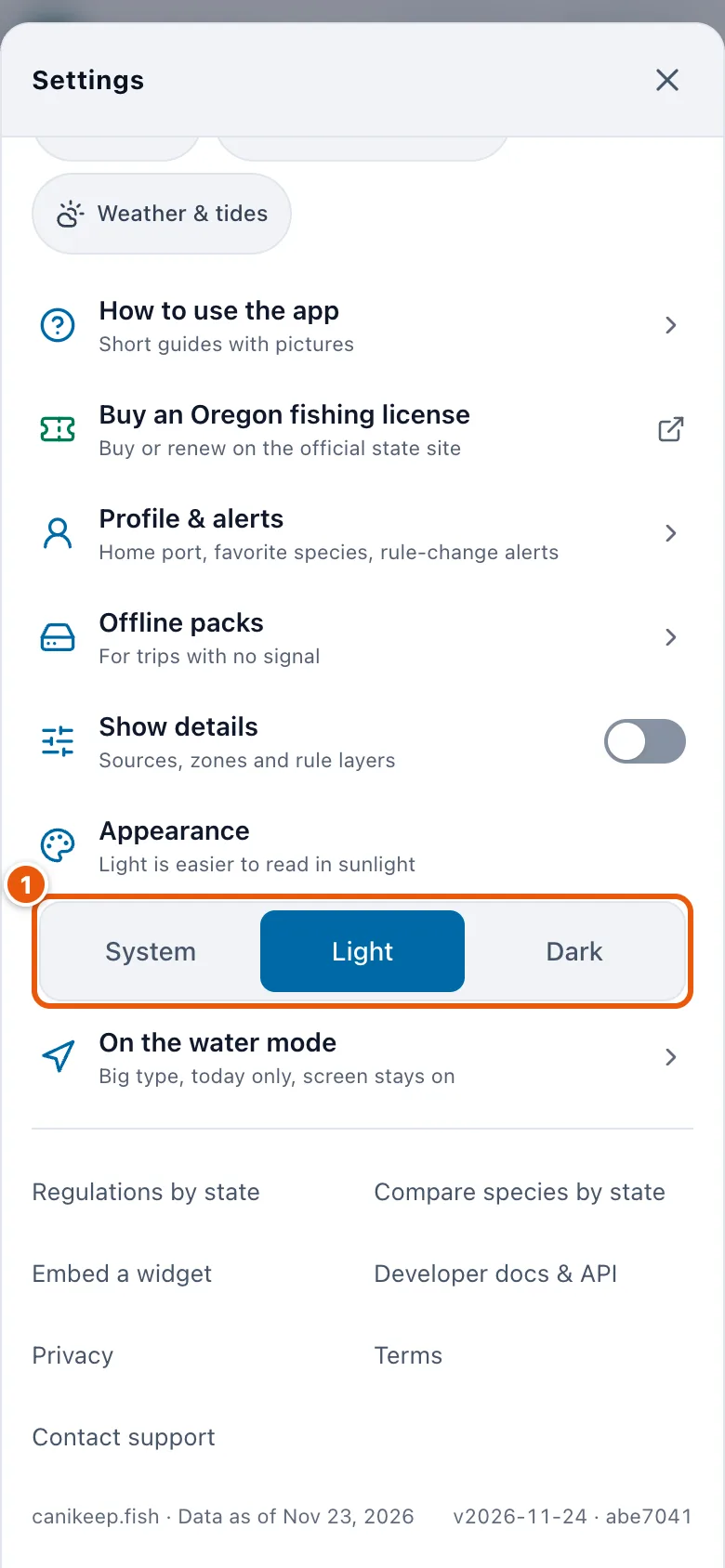
On a computer: click the sun or moon button at the top right.
Show sources and extra detail
- Tap Settings.
- Turn on Show details 1.
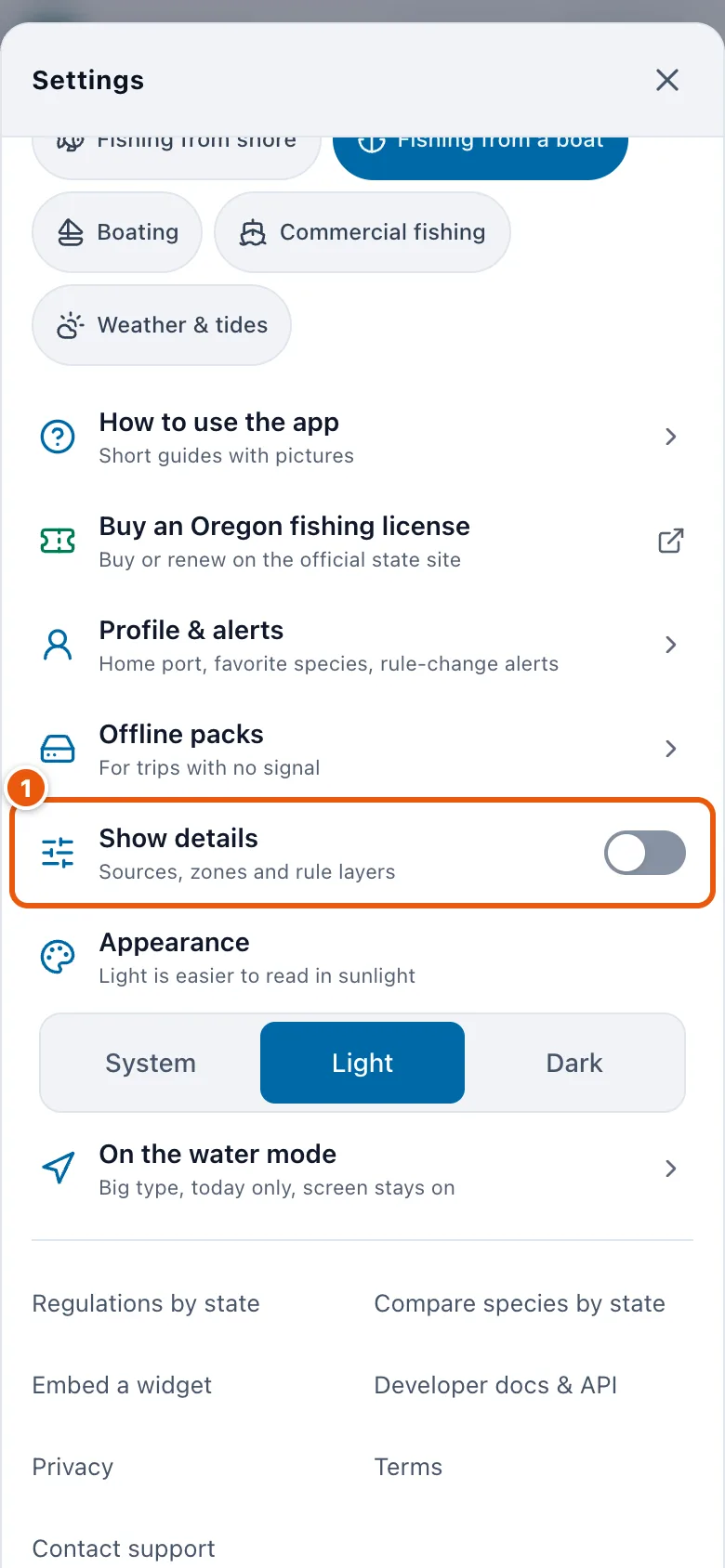
- It adds fish-type filters, scientific names, rule codes, the source text, the marine forecast zone and import dates.
- It also lists every protected area at your spot, not just the ones that limit you.
On a computer: click Details at the top.
Using it on a computer
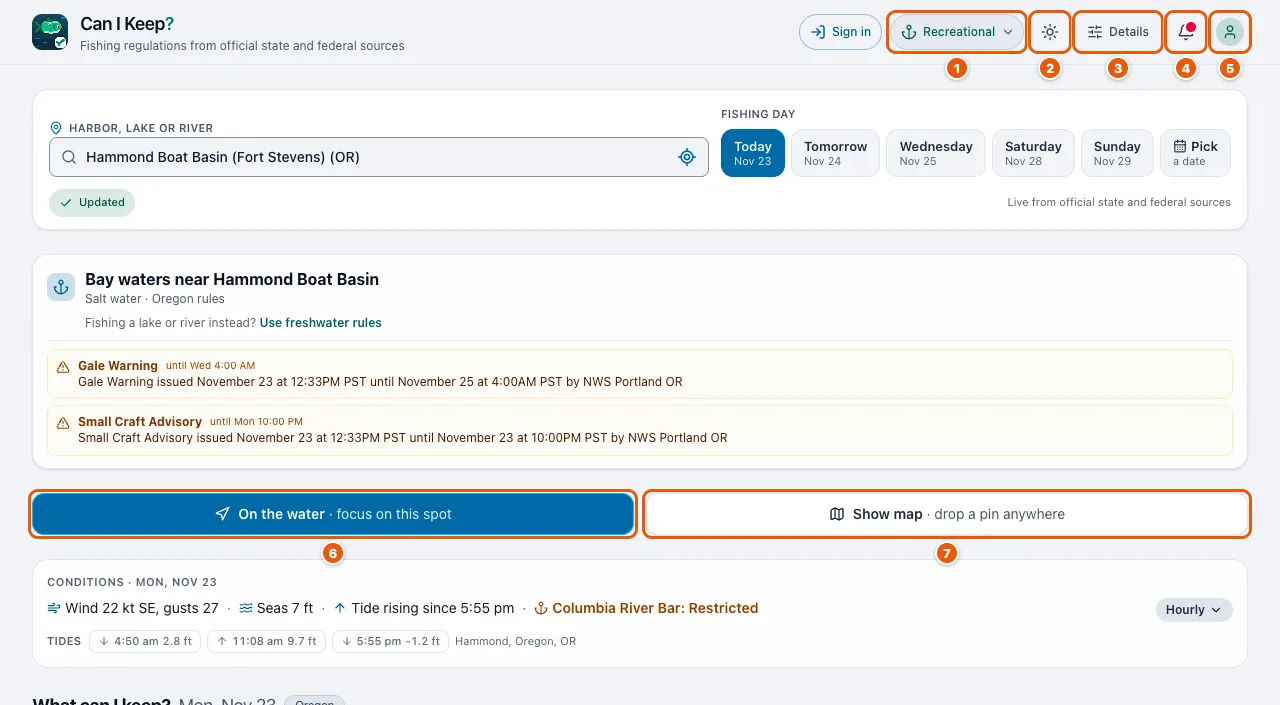
On a computer everything is on one page. The buttons at the top right:
- Recreational / Commercial 1: which rules to show.
- Sun or moon 2: light or dark.
- Details 3: sources and extra detail.
- Bell 4: alerts. Round profile button 5: profile, home port and notifications.
- Below your spot, click On the water · focus on this spot 6 or Show map · drop a pin anywhere 7.
- Offline packs and daily bulletins are also linked at the bottom of the page.
If something looks wrong
Refresh the data
The app updates on its own every 10 minutes while it is open.
- On the Fish or Conditions screen, look at the small status under the days 1, for example “Updated just now” or “Updated 5 min ago”.
- Tap it to check now.
- If it says Couldn't update · Retry, check your signal and tap it again.
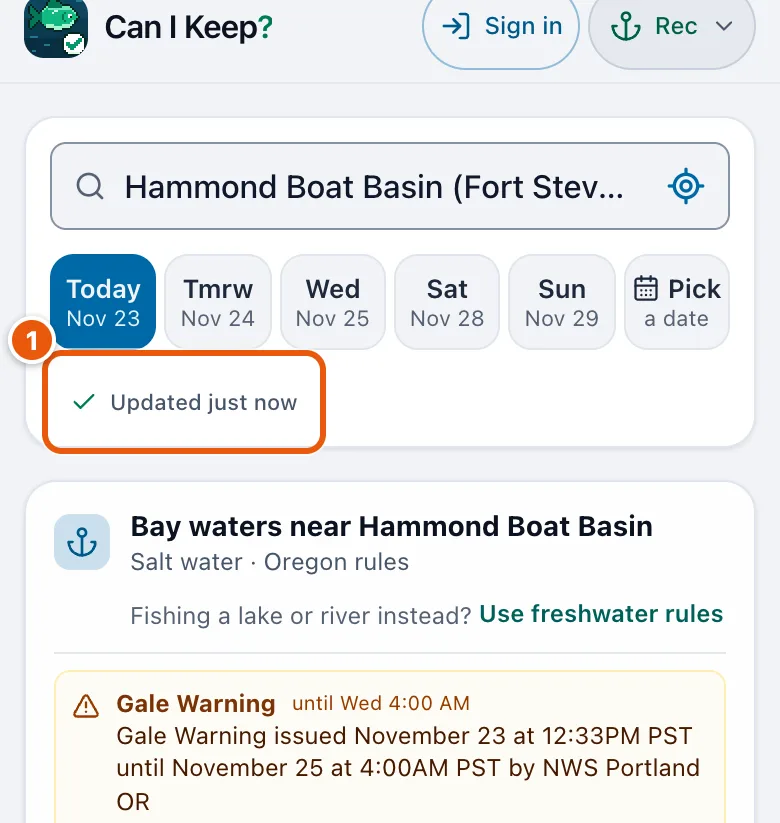
- “Offline · saved data” means you have no connection and the app is showing what it saved.
- If “A new version is available” appears at the bottom, tap Reload.
The app shows the wrong place
- Tap the target button in the search box to go to where you are. See Use my location.
- Or search for your harbor, lake or river. See Search a harbor, lake or river.
- Or tap the exact spot on the map. See Drop a pin on the map.
- If the spot card names the wrong water, tap the right name after “Not here?” or “Nearby:”.
- If it shows salt-water rules on a lake, see Fishing a lake or river instead?.
Contact support
- Email support@canikeep.fish.
- Tell us the place, the day and the fish, and what looked wrong. A screenshot helps.